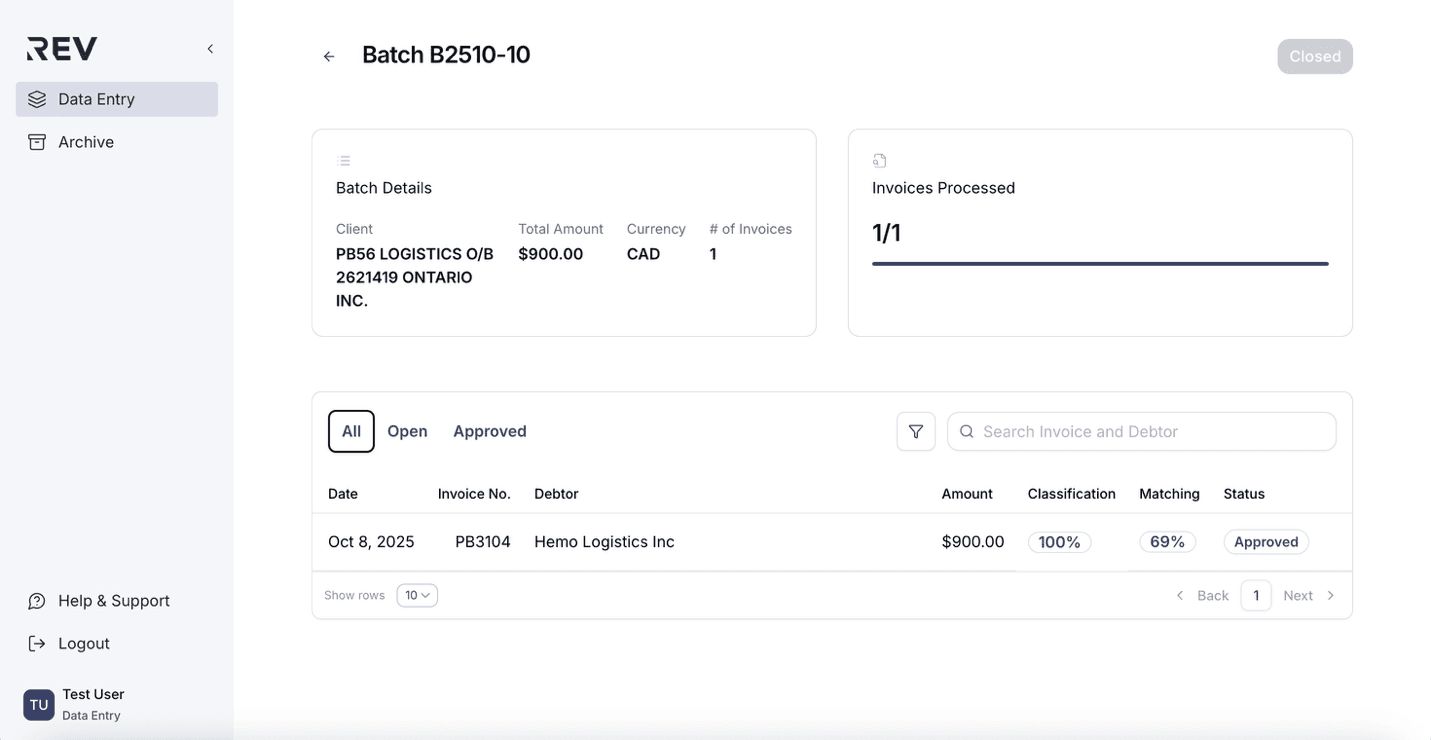
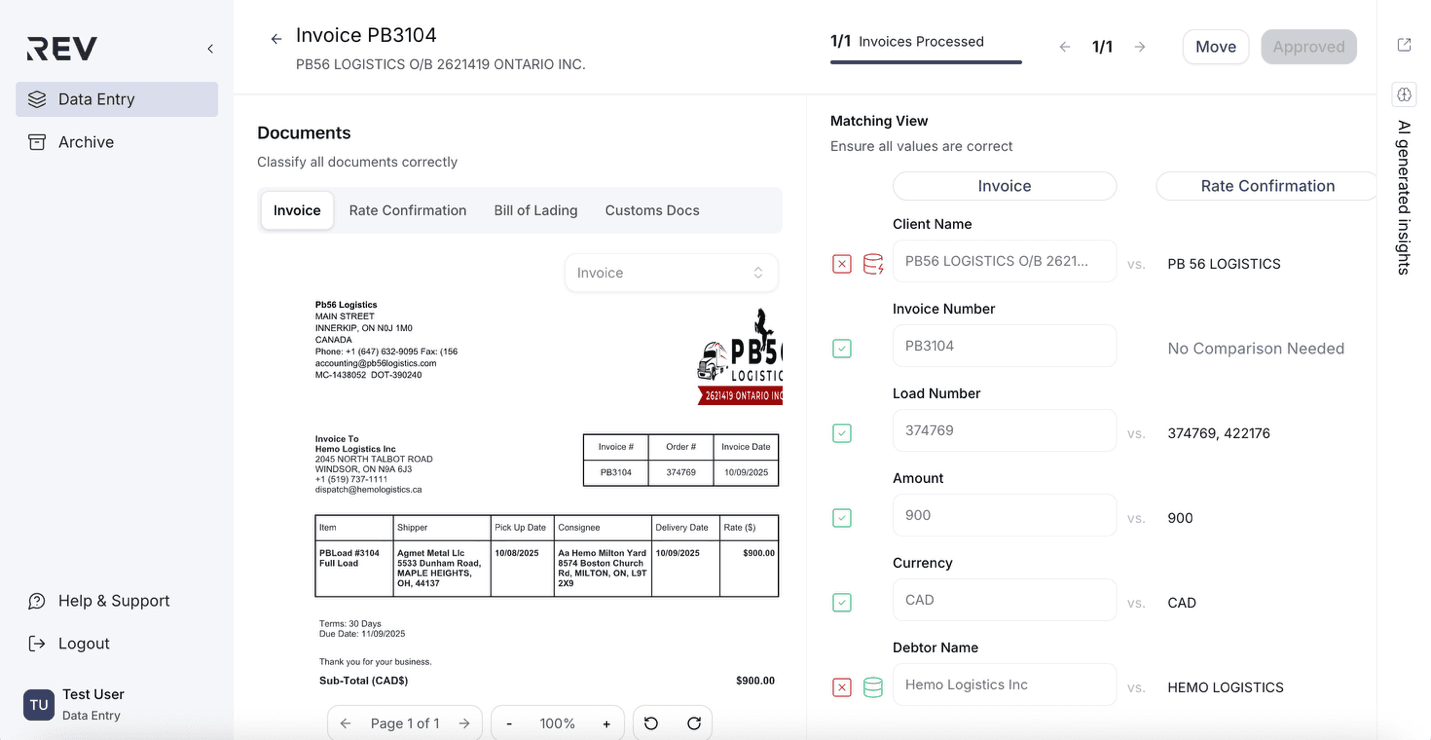
Getting Started
Your comprehensive guide to the Data Entry platform.
Welcome to Data Entry Platform! This guide will help you navigate through all the key features including document preview, batch management, invoice review, AI insights, and archive & recovery. Whether you're processing your first batch or managing complex workflows, everything you need to know is right here.
How to preview intake documents?
Easily check the files inside any intake entry.
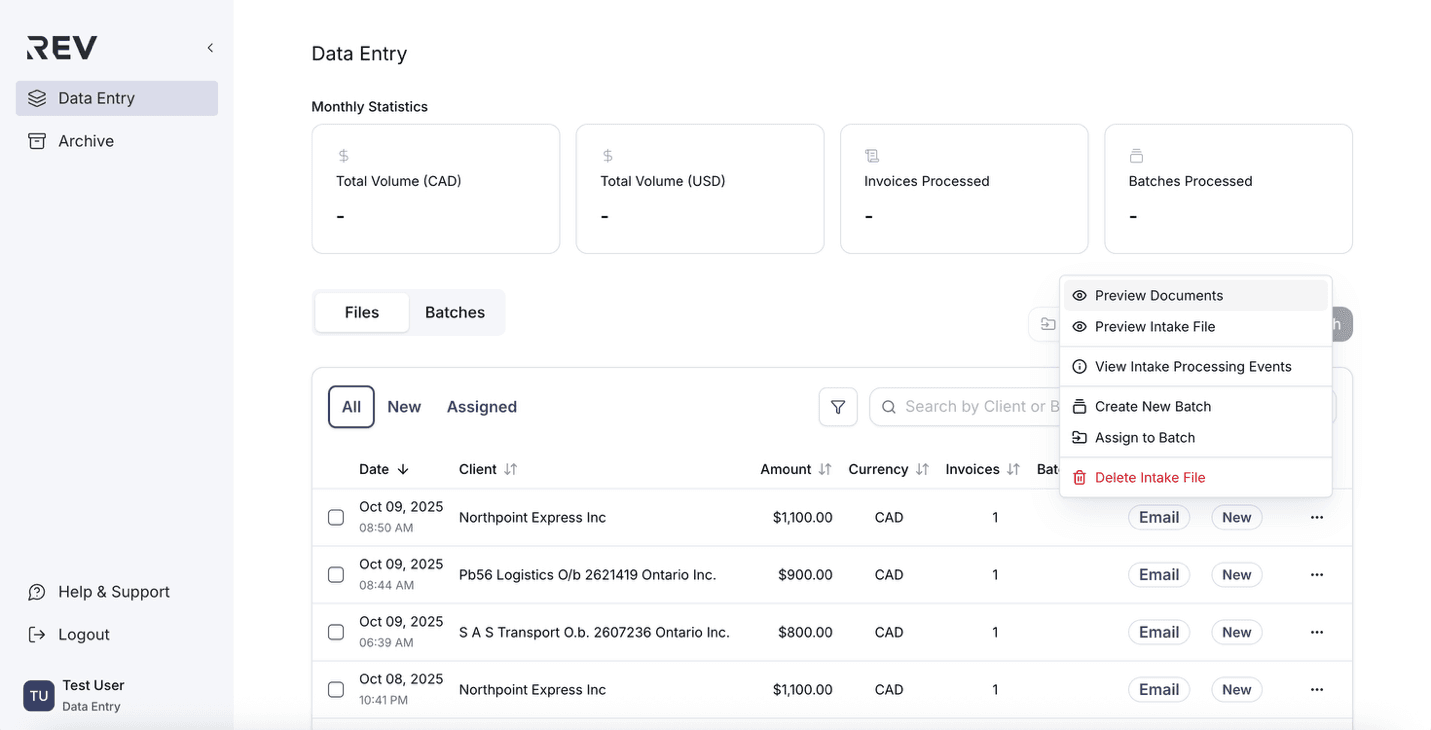
Preview intake documents
- Go to the File tab under Data Entry.
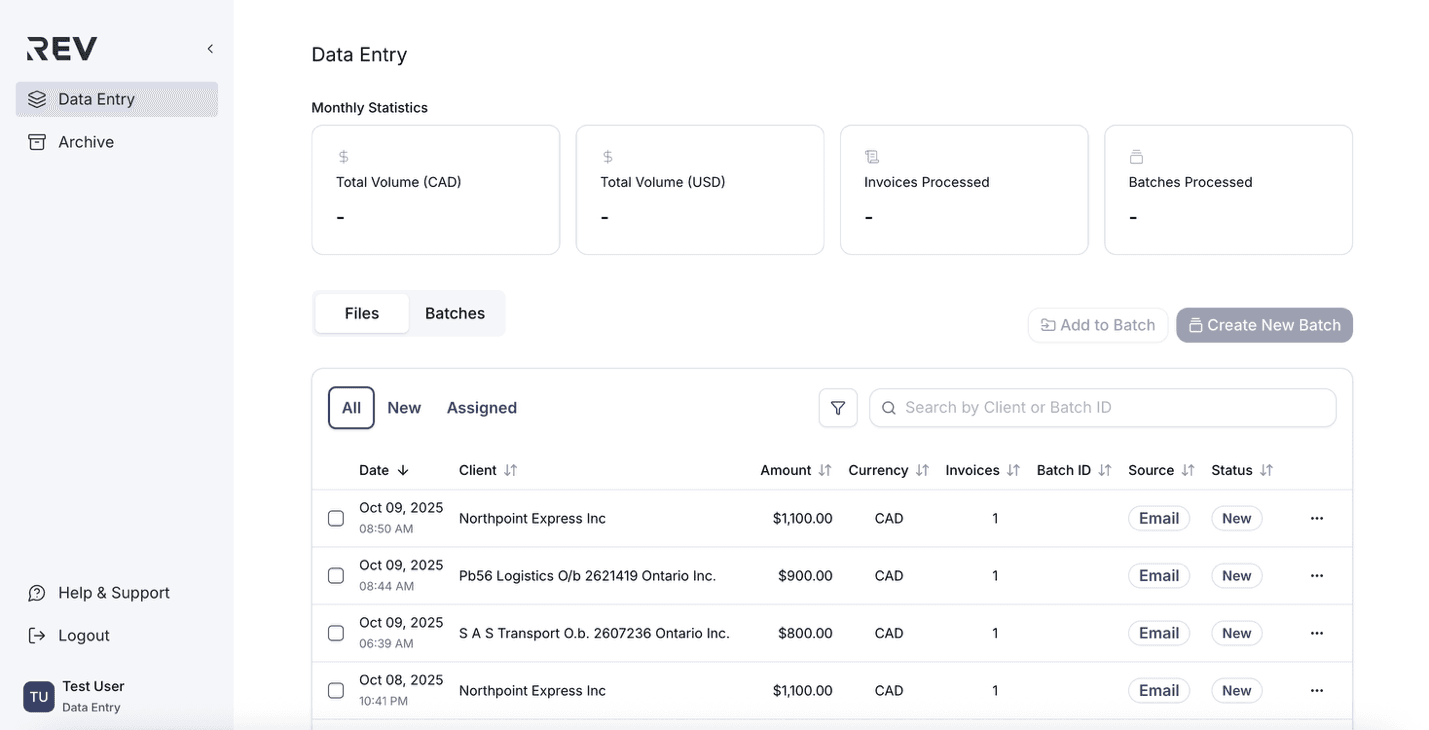
- Click the ellipsis (⋯) on the right side of the intake file you want to preview.
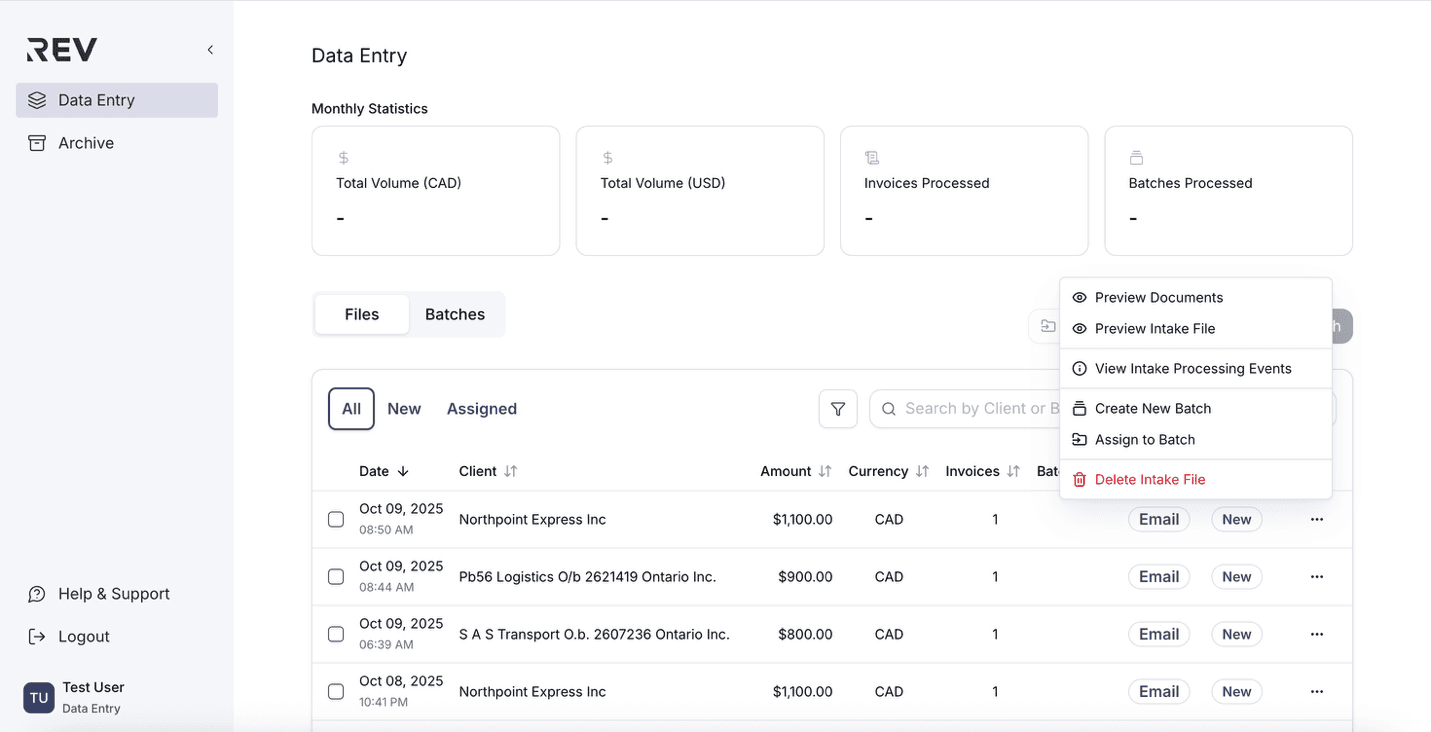
- Select Preview Documents from the dropdown menu.
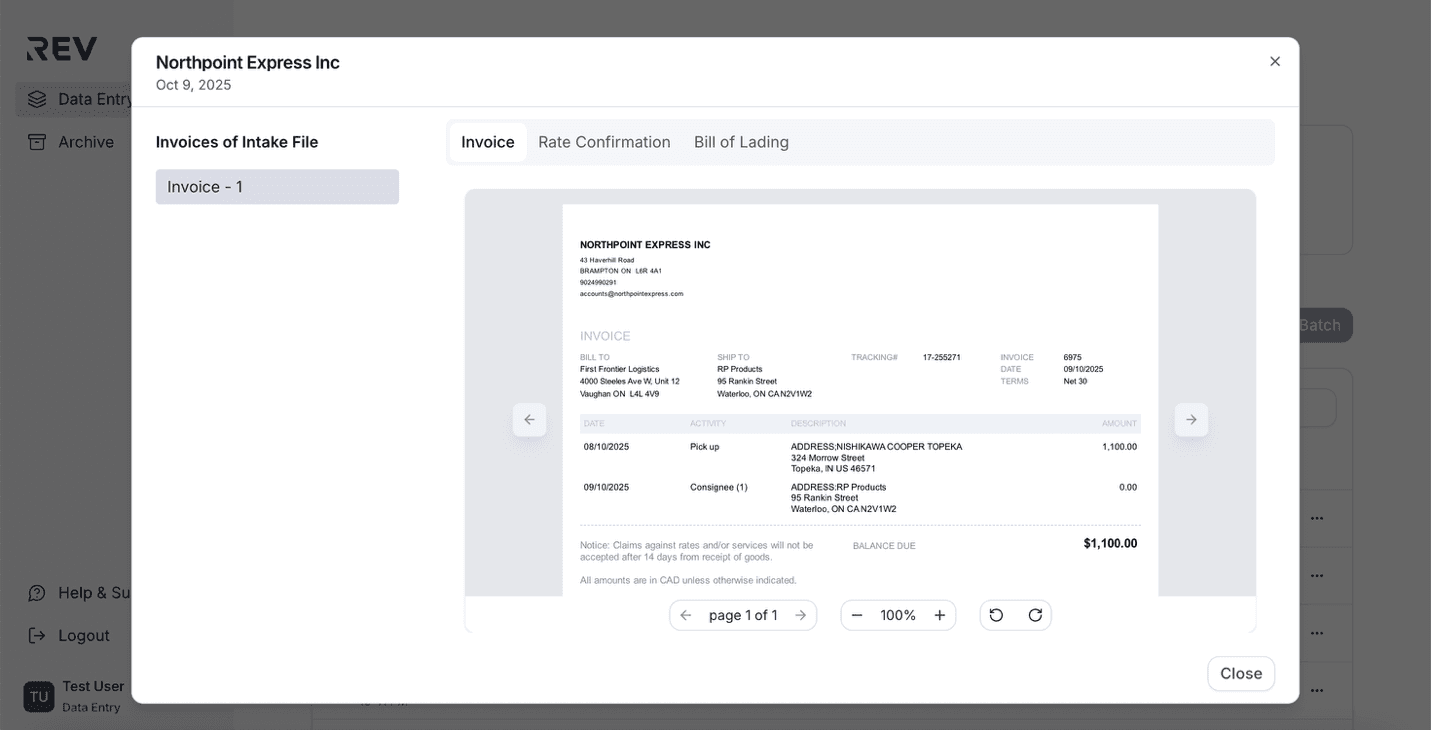
- In the preview window:
- Use the tabs on top to switch between document types (e.g., Invoice, BOL, Rate Confirmation).
- Use the left-side panel to navigate between invoices.
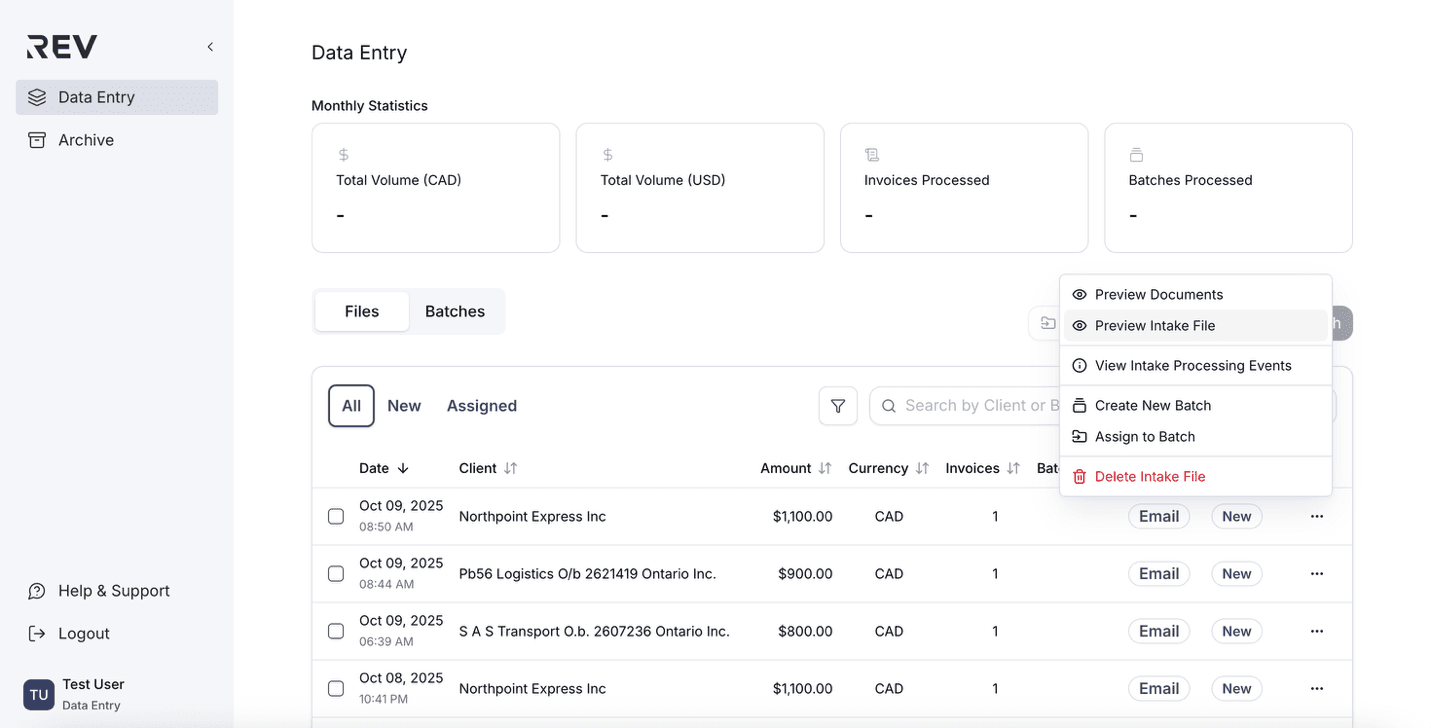
Preview original intake file
- Click the ellipsis (⋯) on the right side of the intake file.
- Select Preview Intake File from the dropdown.
- A viewer will open showing the original file as submitted by the client.
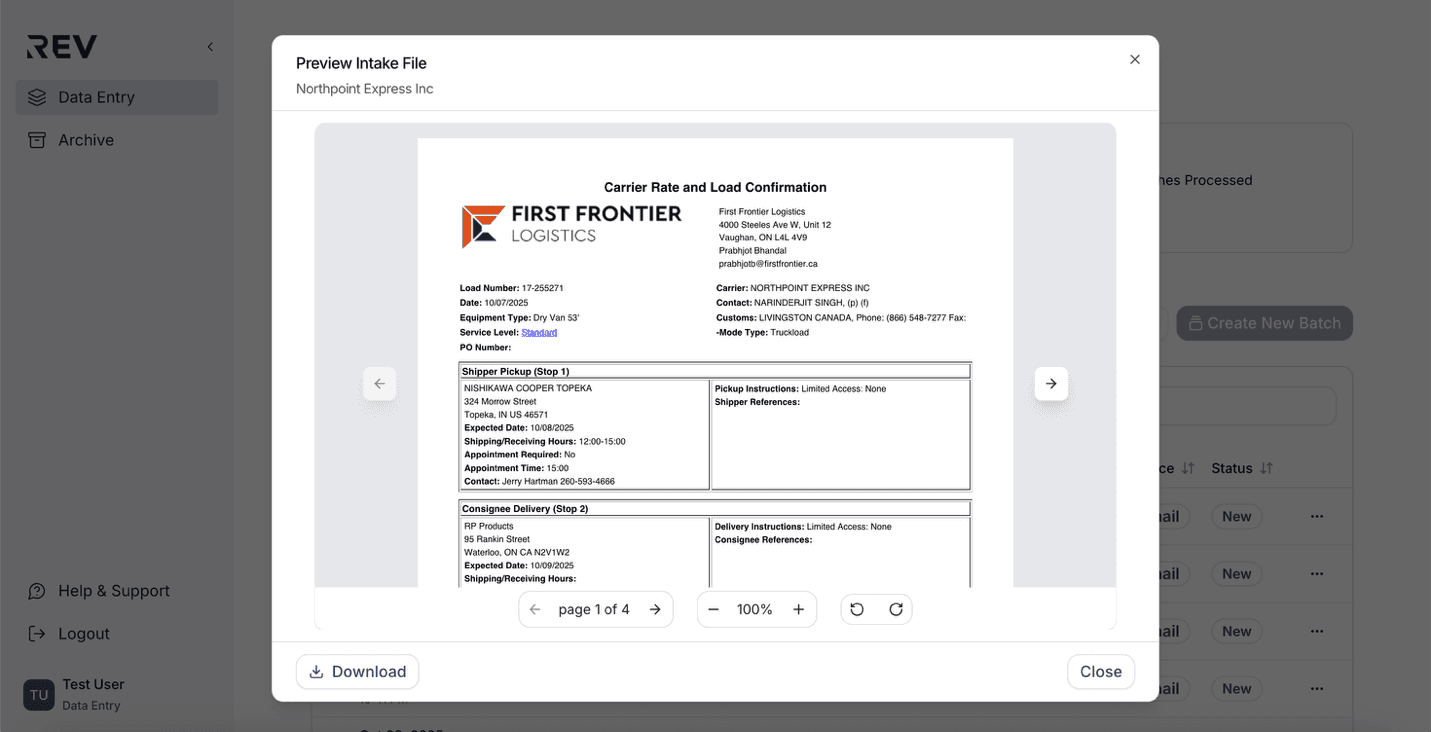
- You can also download the file directly from this preview window if needed.
How to create a batch?
Create a new batch from selected intake files with just a few clicks.
- Select one or more intake files from the Files tab under Data Entry.
- Tip: You can only select intake files that belong to the same client and have the same currency.
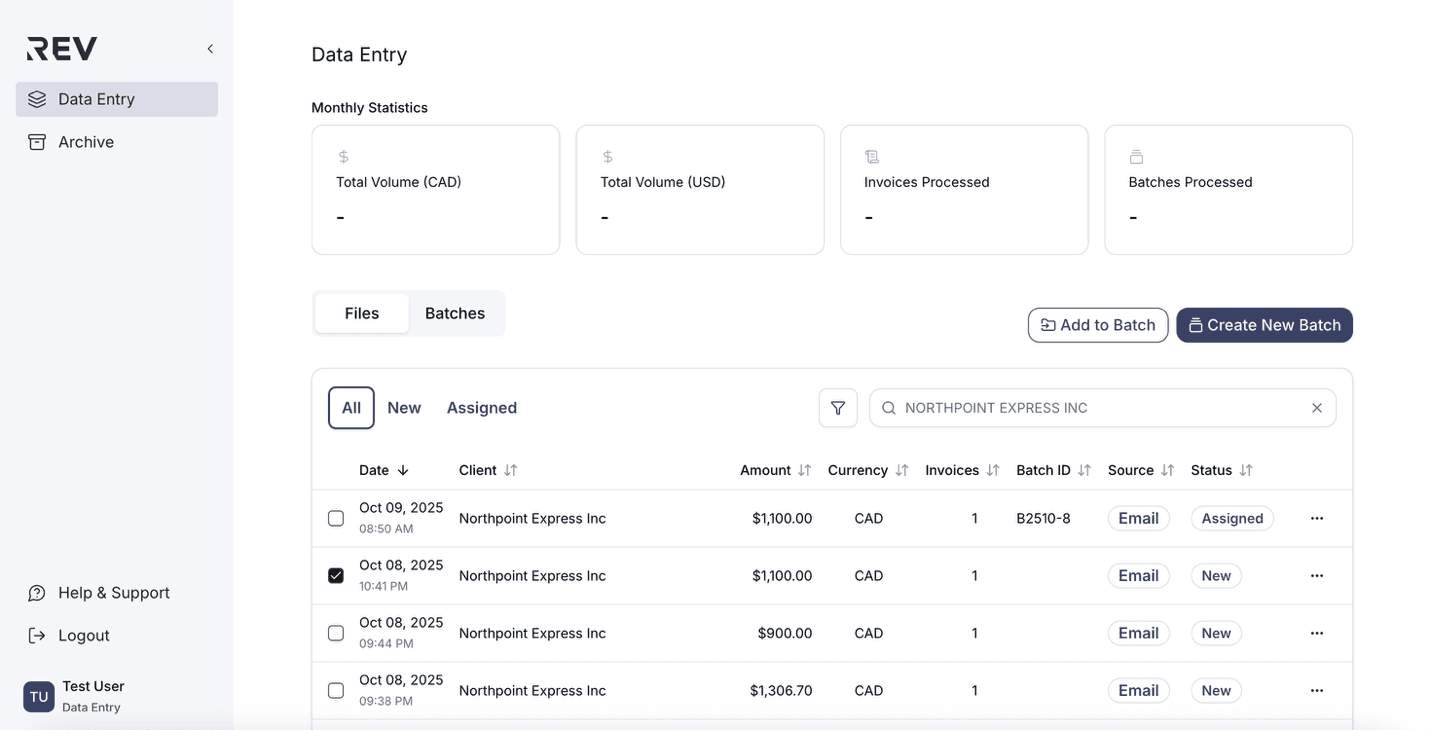
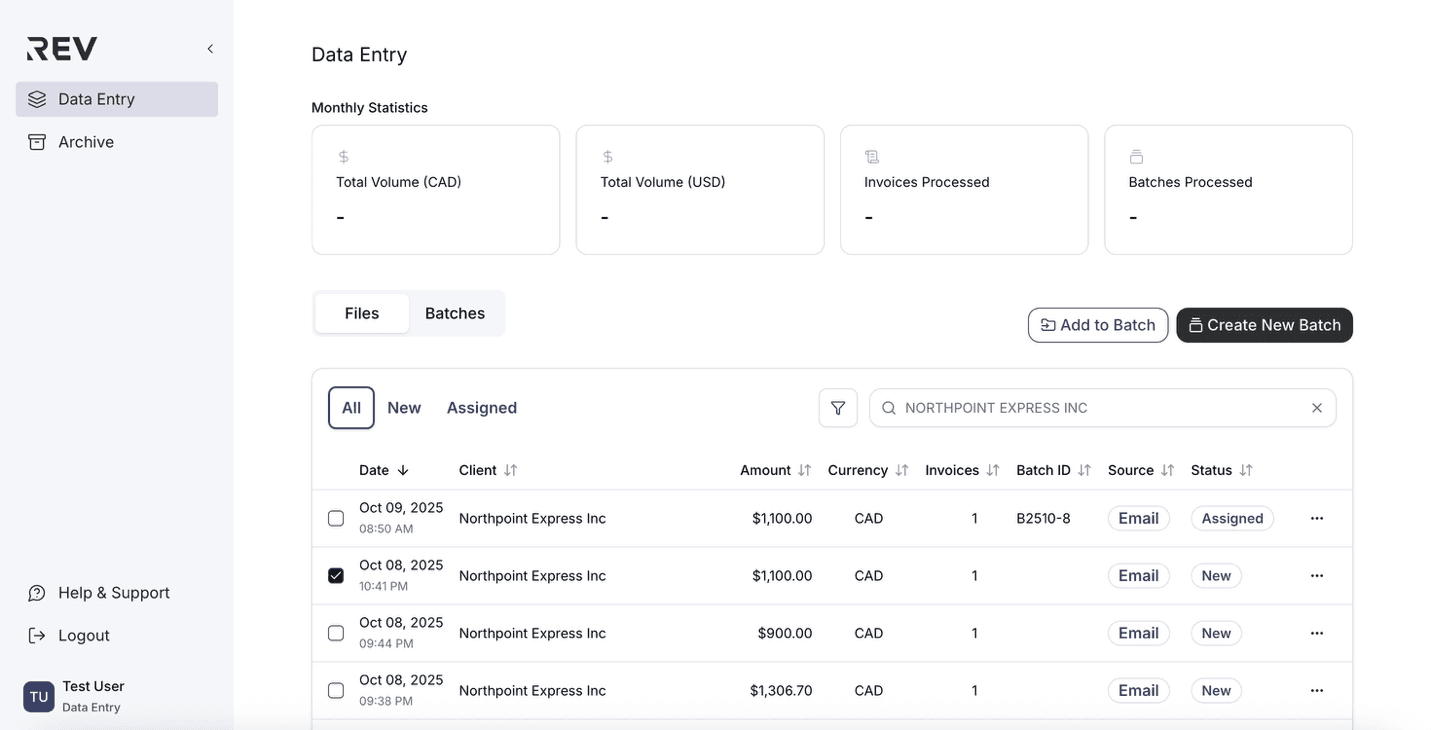
- Click Create New Batch on the top right.
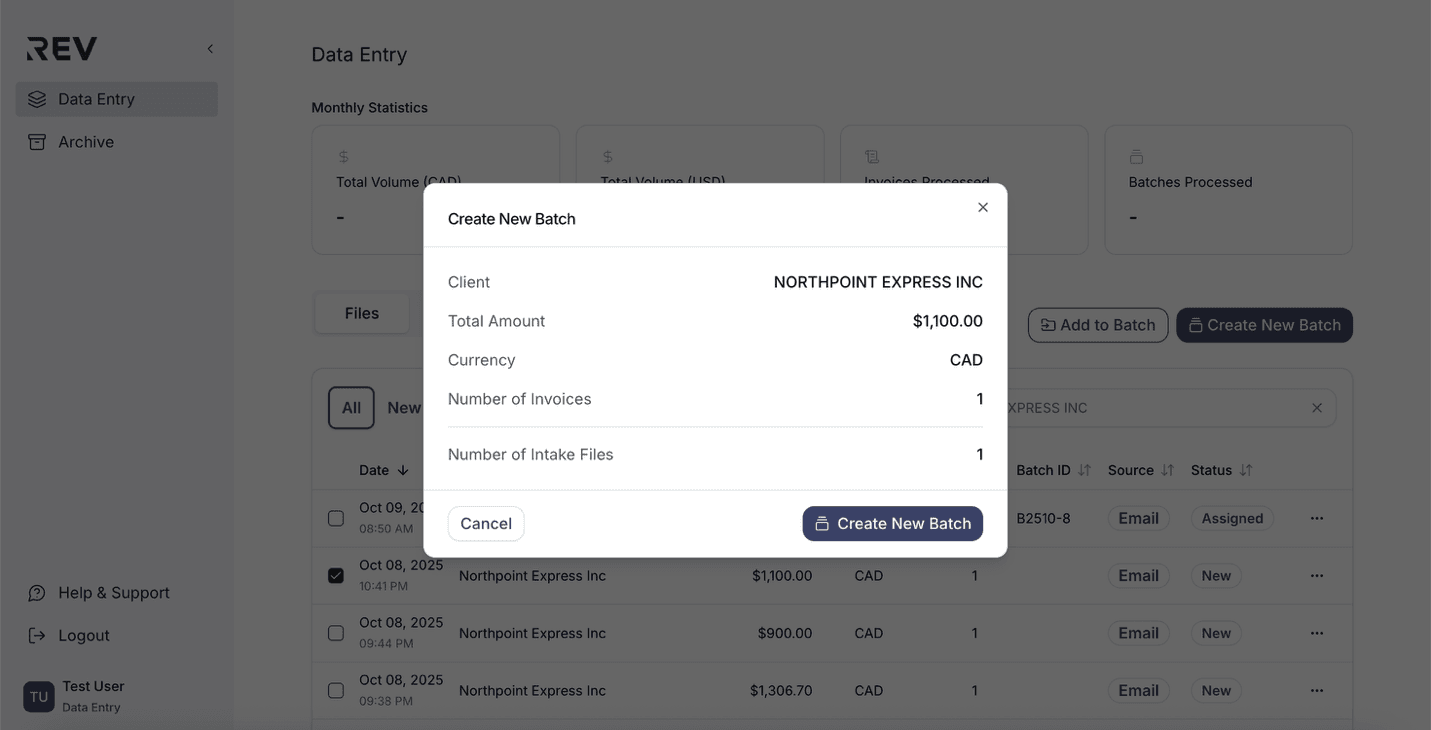
- Review batch summary in the pop-up.
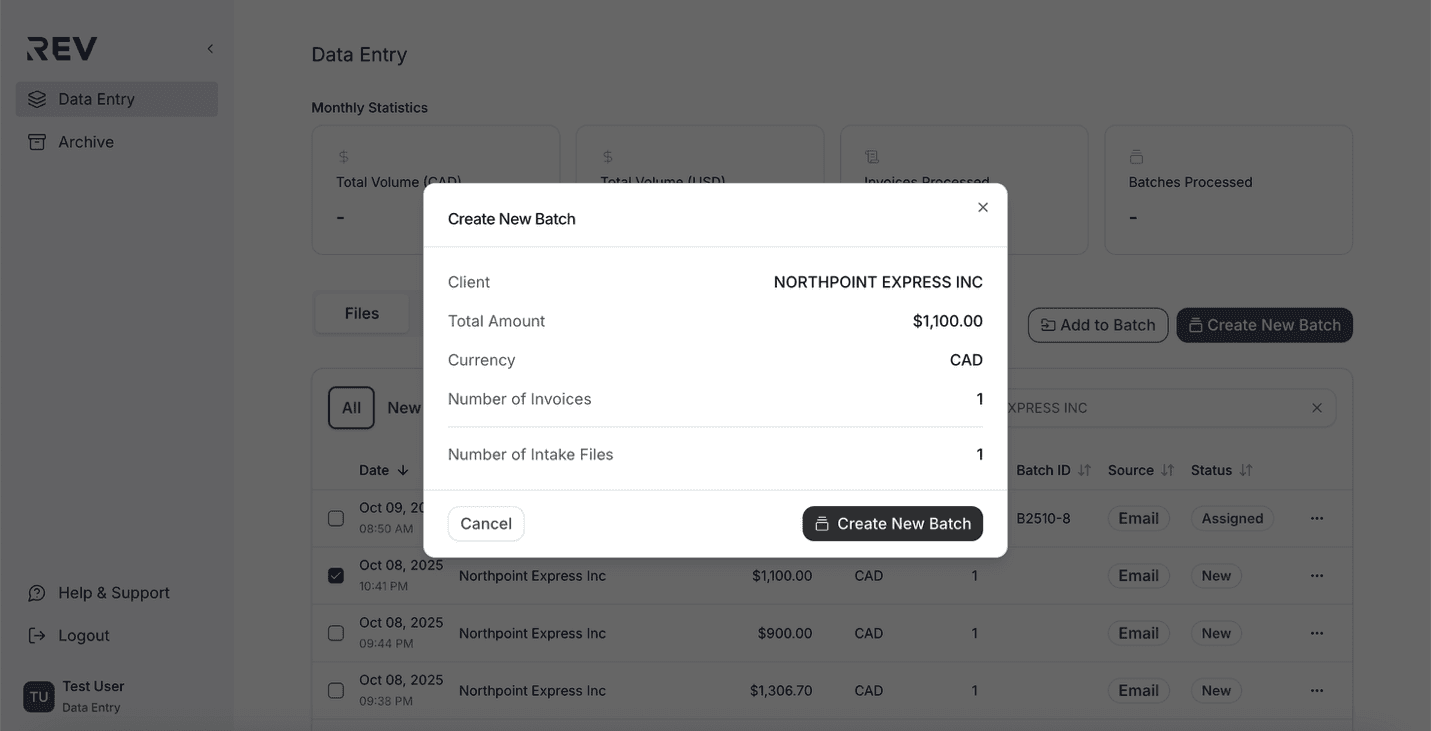
- Click Create New Batch to confirm.
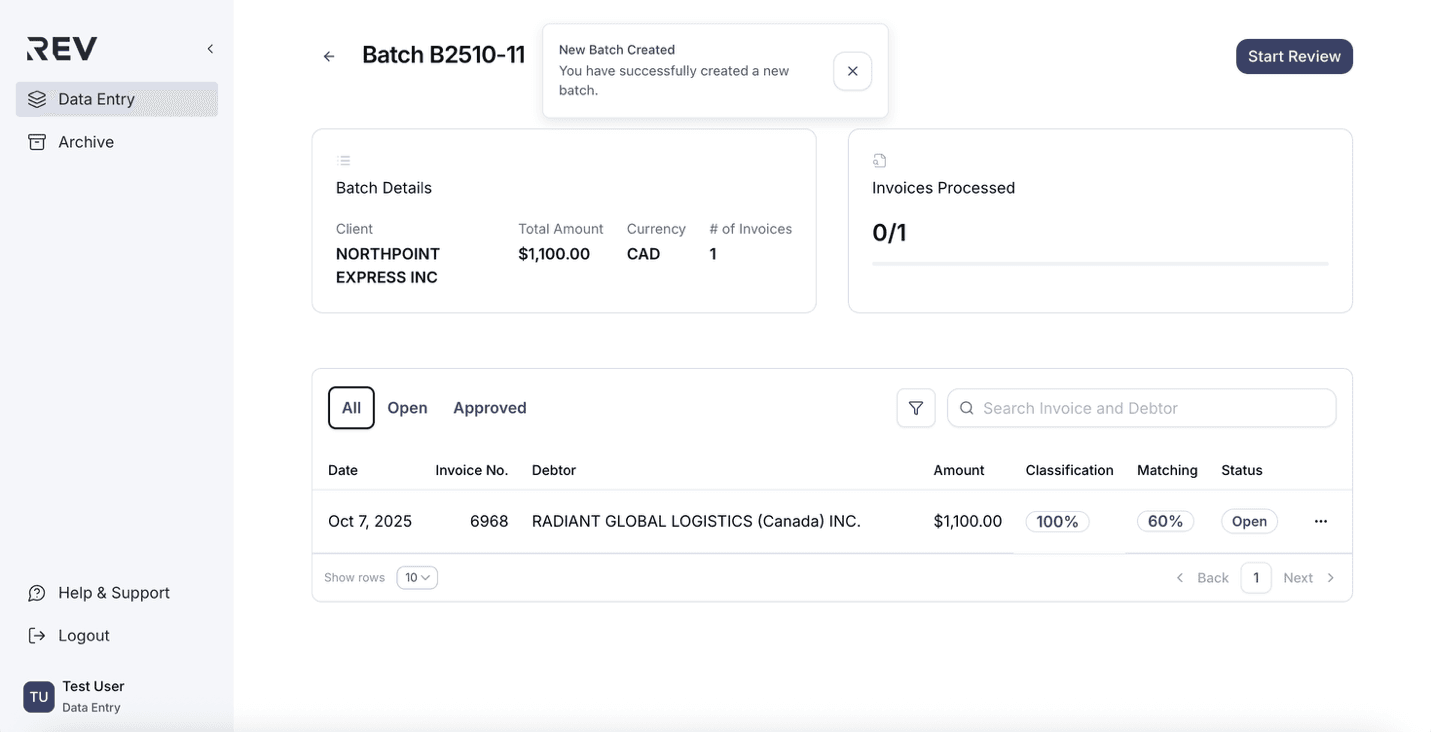
- You'll see a confirmation banner once the batch is created.
How to add intake files to a batch?
Quickly group intake files to an existing batch.
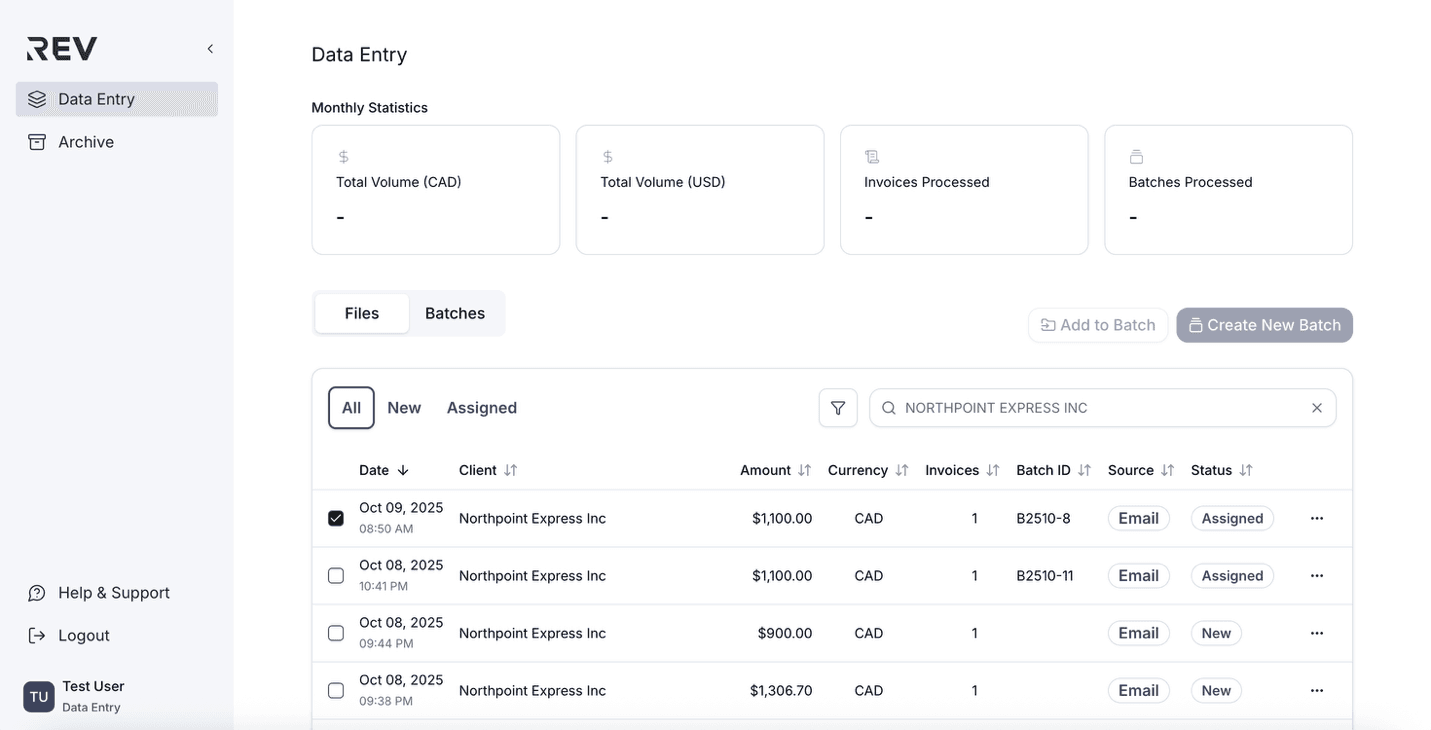
- Go to the Files tab under Data Entry.
- Select the intake files you want to assign.
- Click Add to Batch.
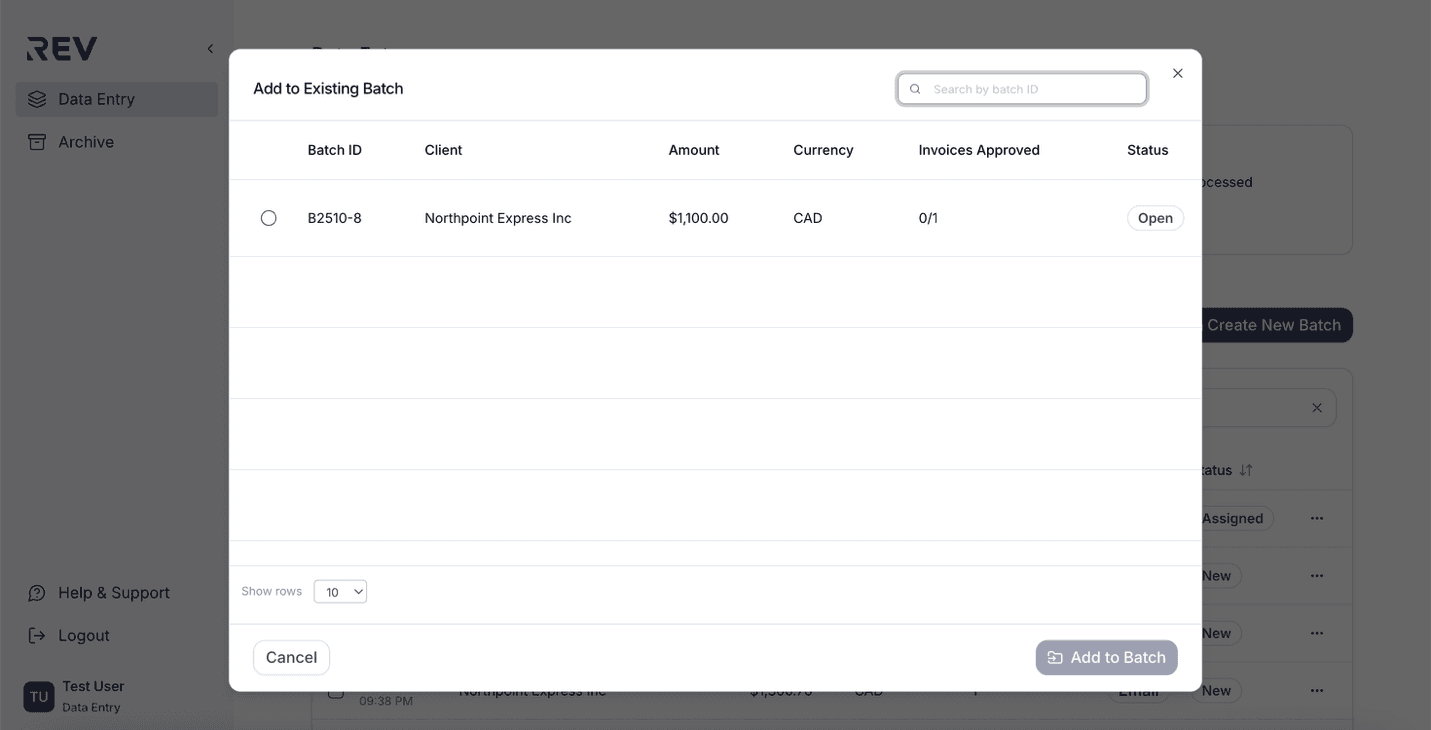
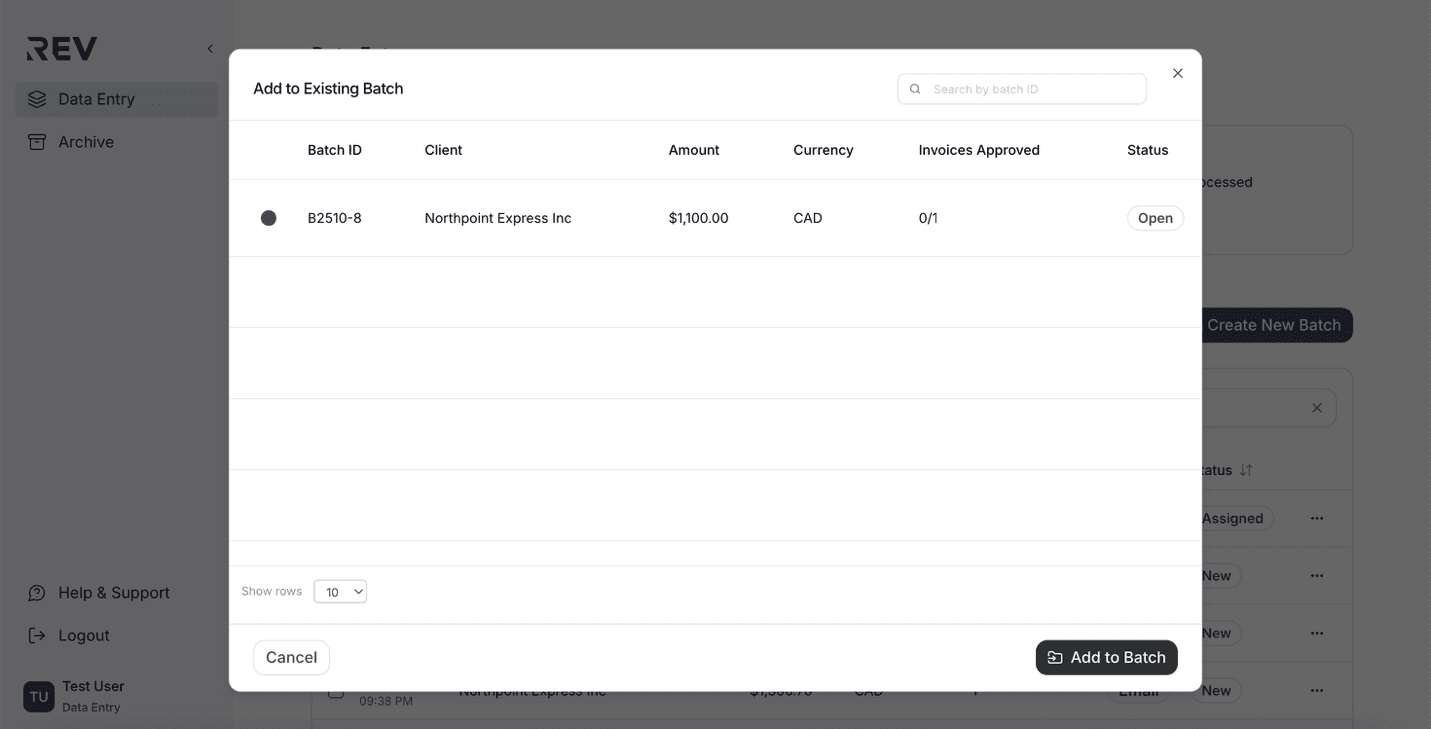
- In the pop-up window, you'll see all eligible batches for that client.
- Select a batch from the list.
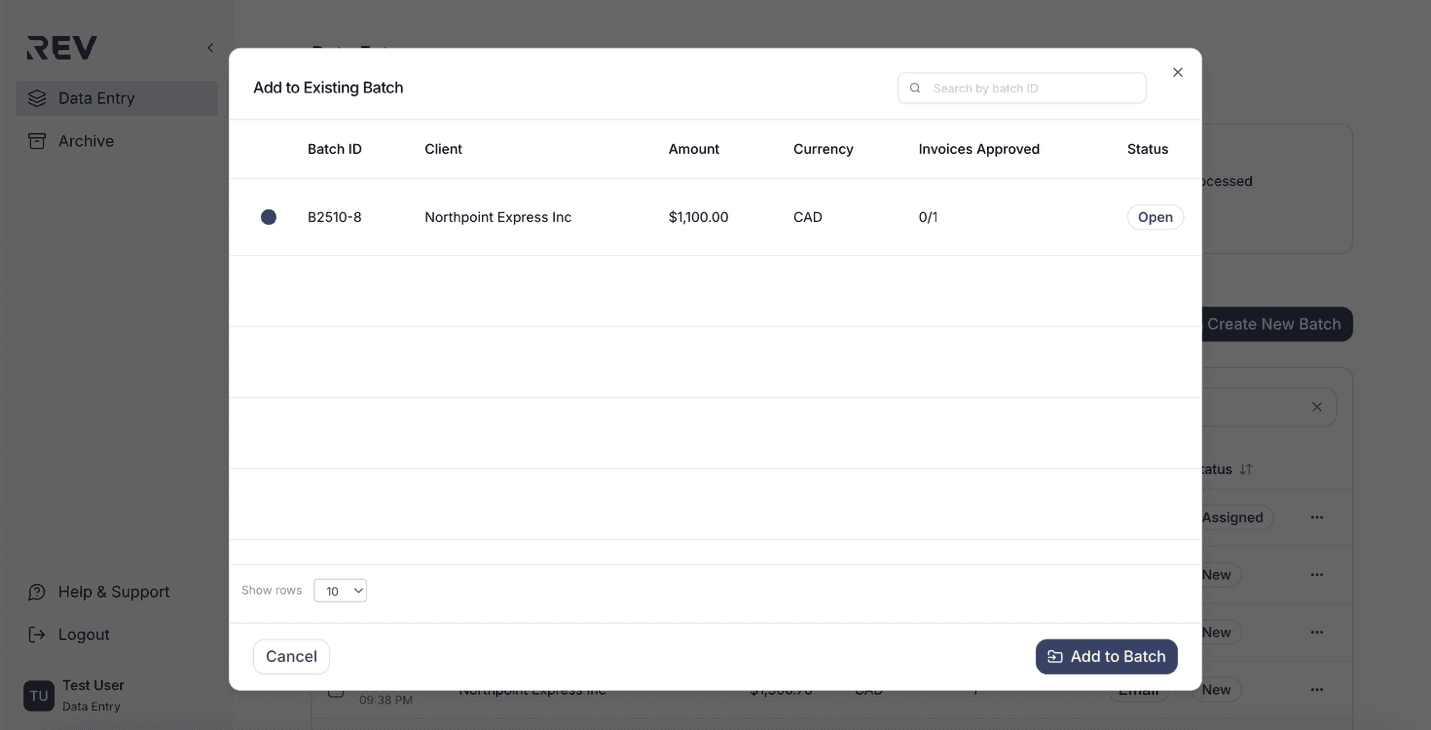
- Click Add to Batch to confirm.
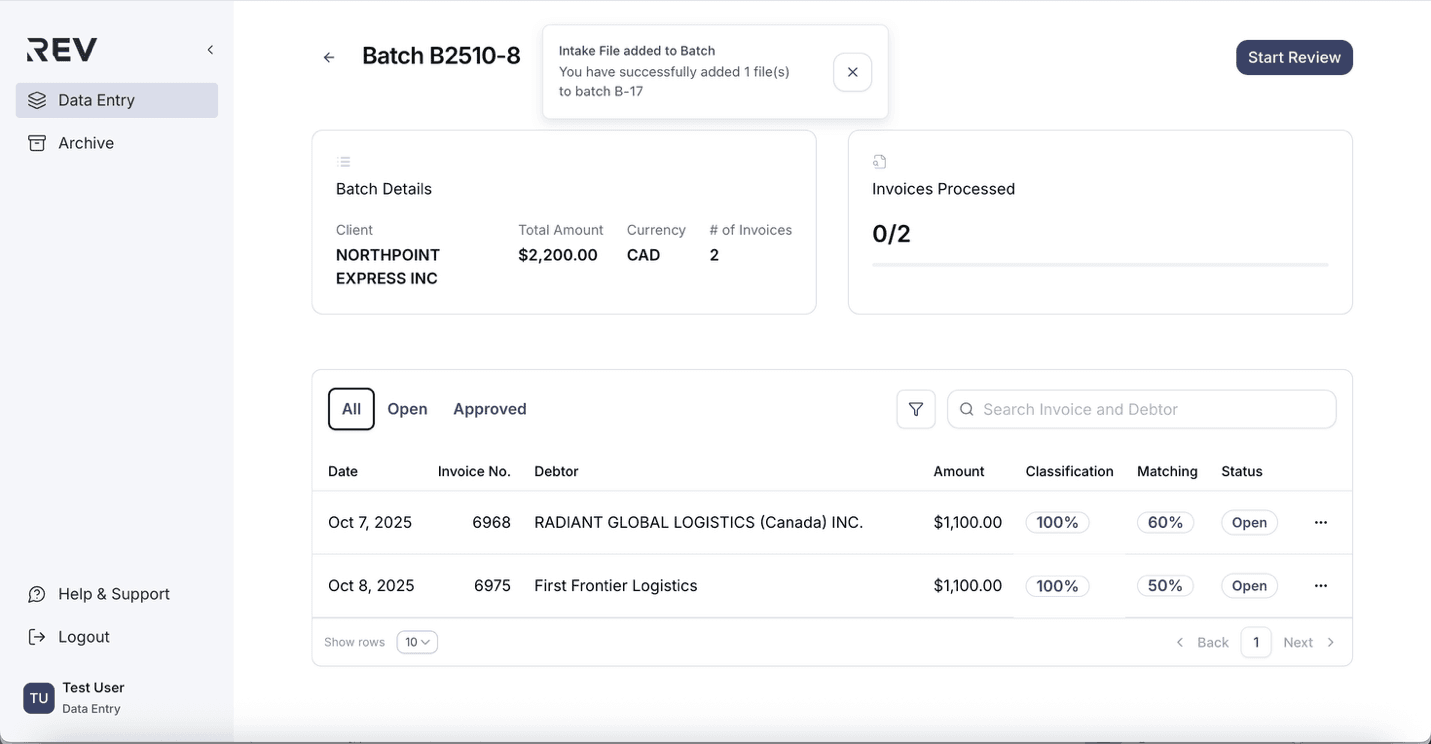
- A confirmation banner will appear to indicate success.
How to move files from one batch to another?
Reassign intake files from one batch to another in just a few clicks.
- Go to the Files tab under Data Entry.
- Click the ellipsis (⋯) on the right side of the intake file you want to preview.
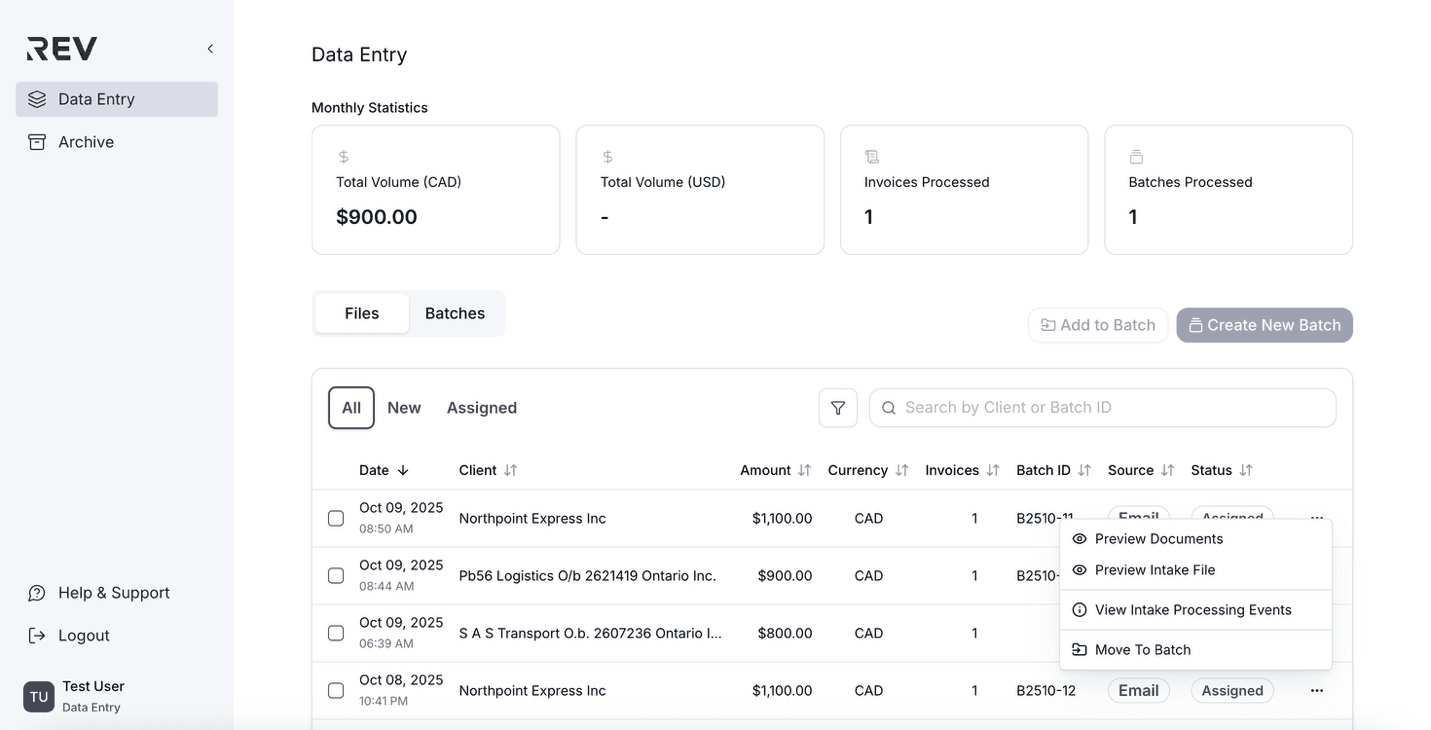
- Select Move to Batch from the dropdown menu.
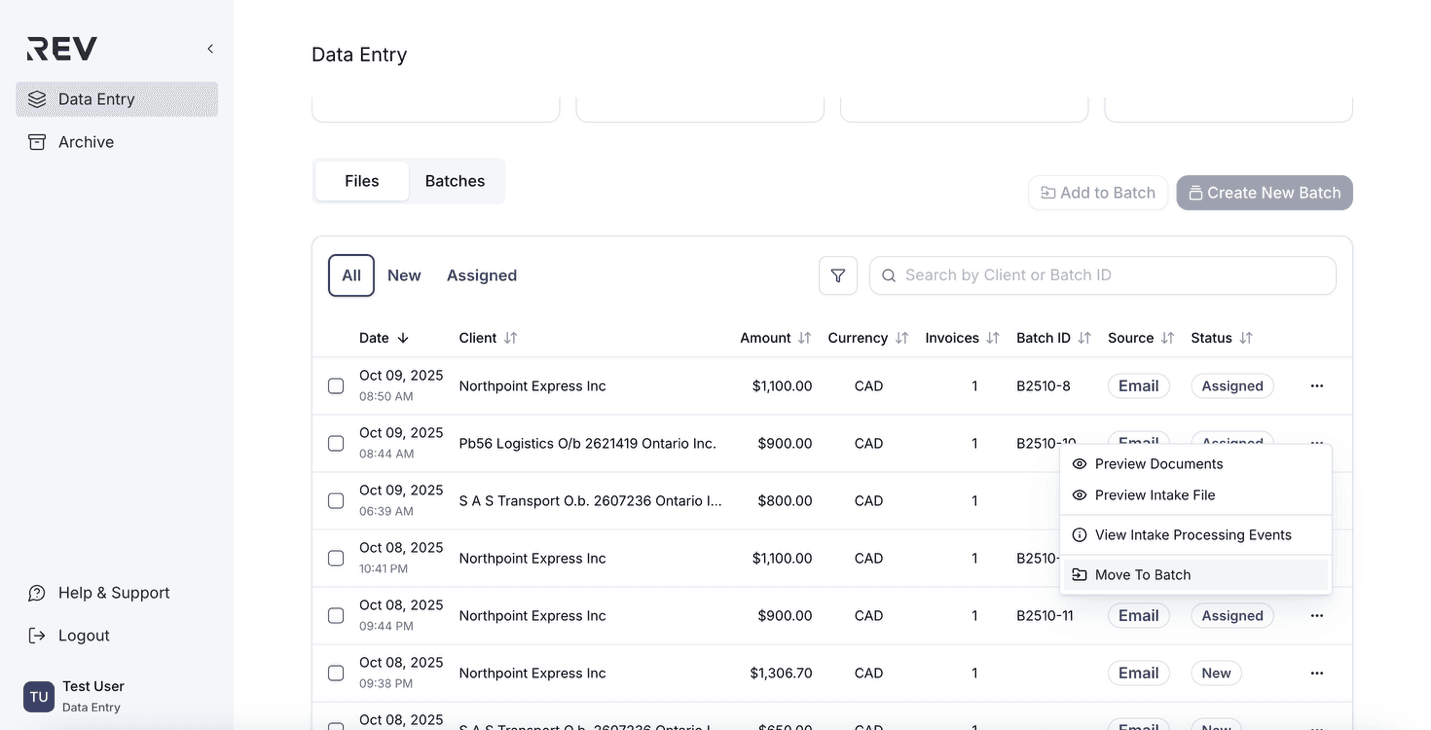
- In the pop-up window, choose the new batch to move the files into.
- Tip: You can only move to batches that belong to the same client and have the same currency.
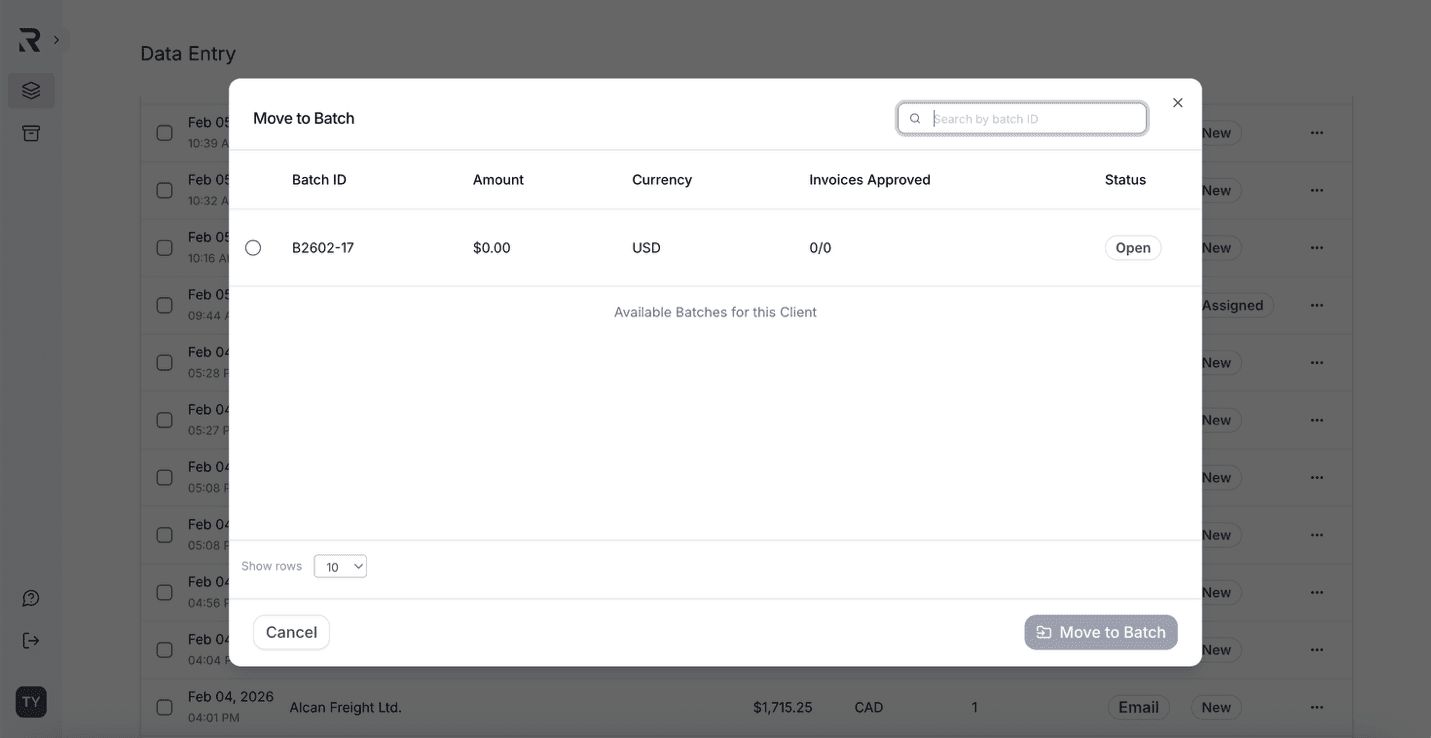
- Click Move to Batch to confirm.
- A confirmation banner will appear to indicate success.
How to review a batch?
Manage invoices and take batch-level actions before final submission.
Start review
- After opening a batch from the Batches tab, click the Start Review button in the top-right corner.
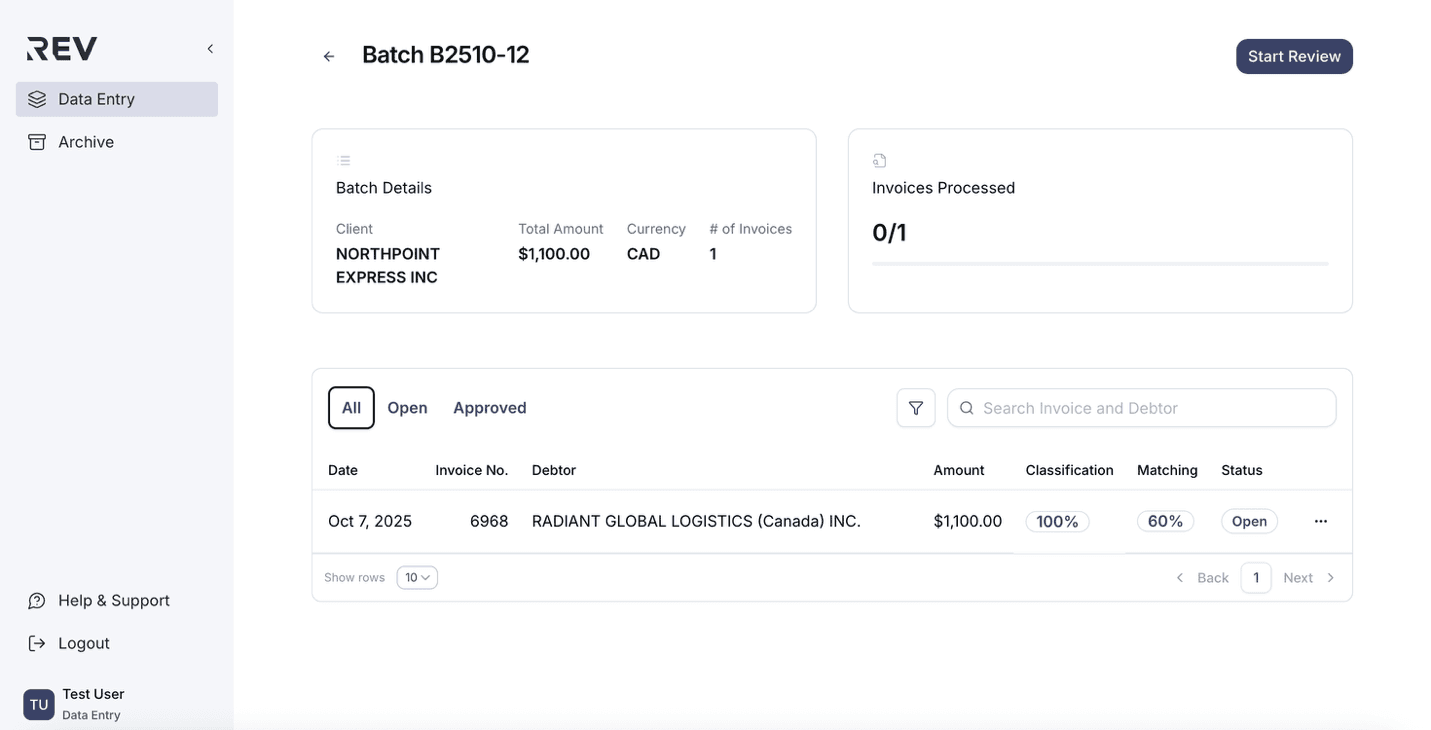
- The system will take you directly to the first open invoice.
- If the first invoice is already approved, it will skip to the next open one.
- You can also navigate between invoices manually using the Previous and Next buttons in the top right corner.
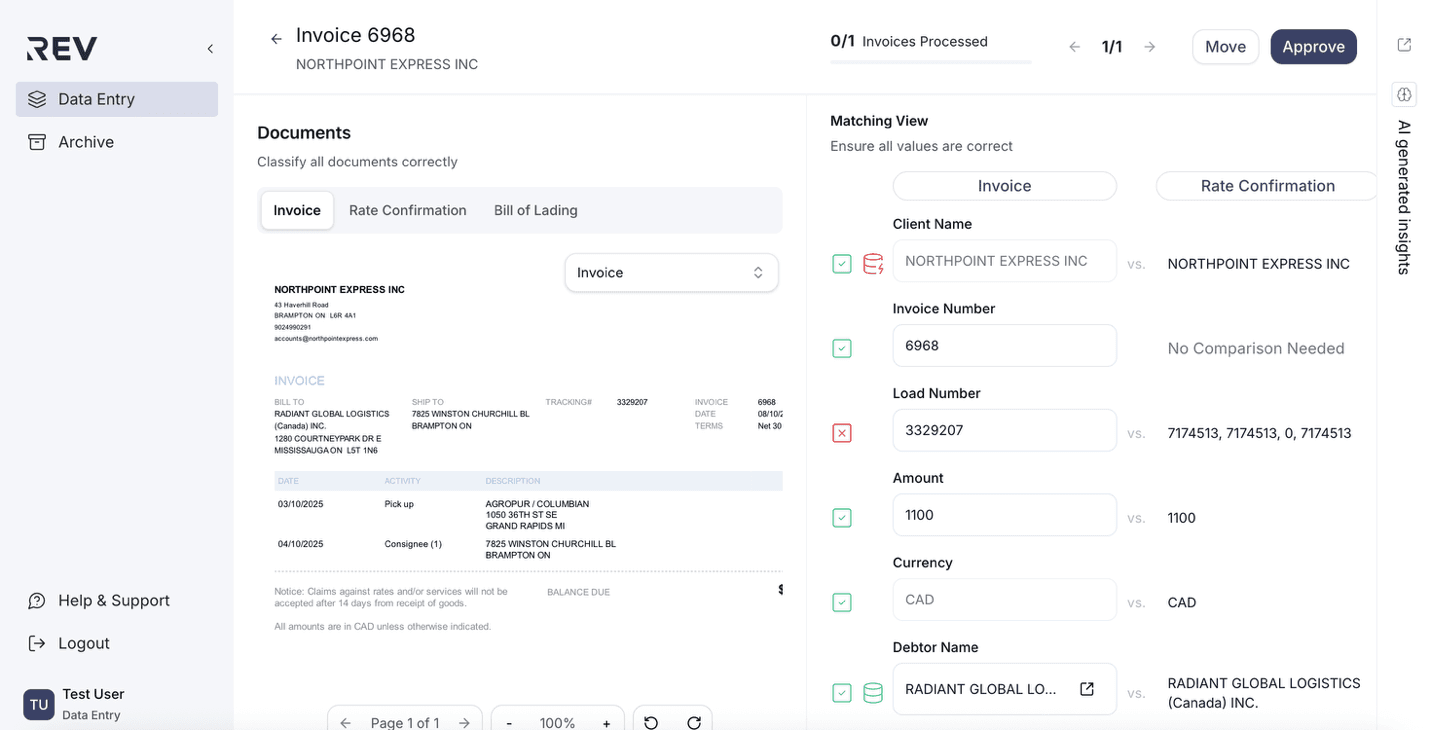
Review invoices
- Make changes as needed on each invoice.
- Click Approve once finished.
- The screen will automatically slide to the next open invoice.
Edit individual invoices
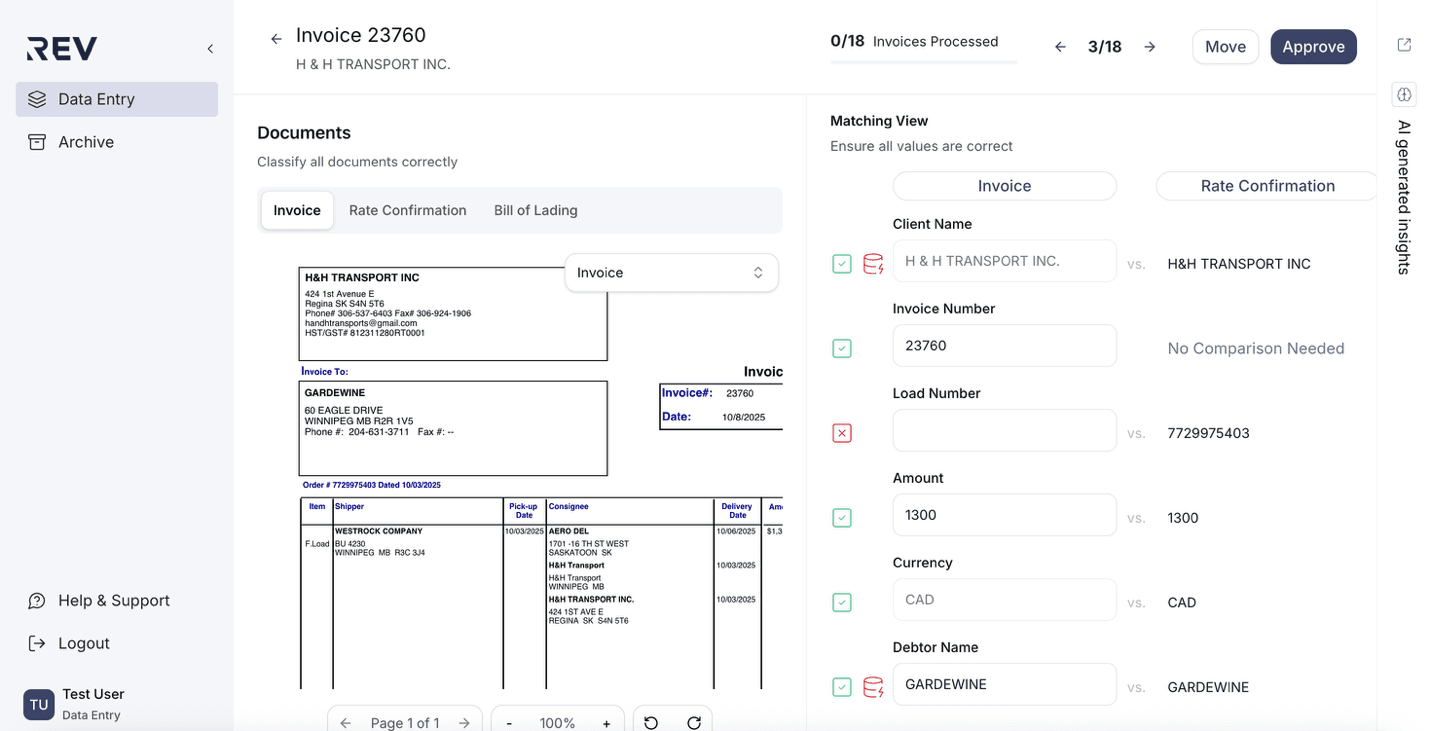
- If you need to revise a specific invoice, simply click to open it.
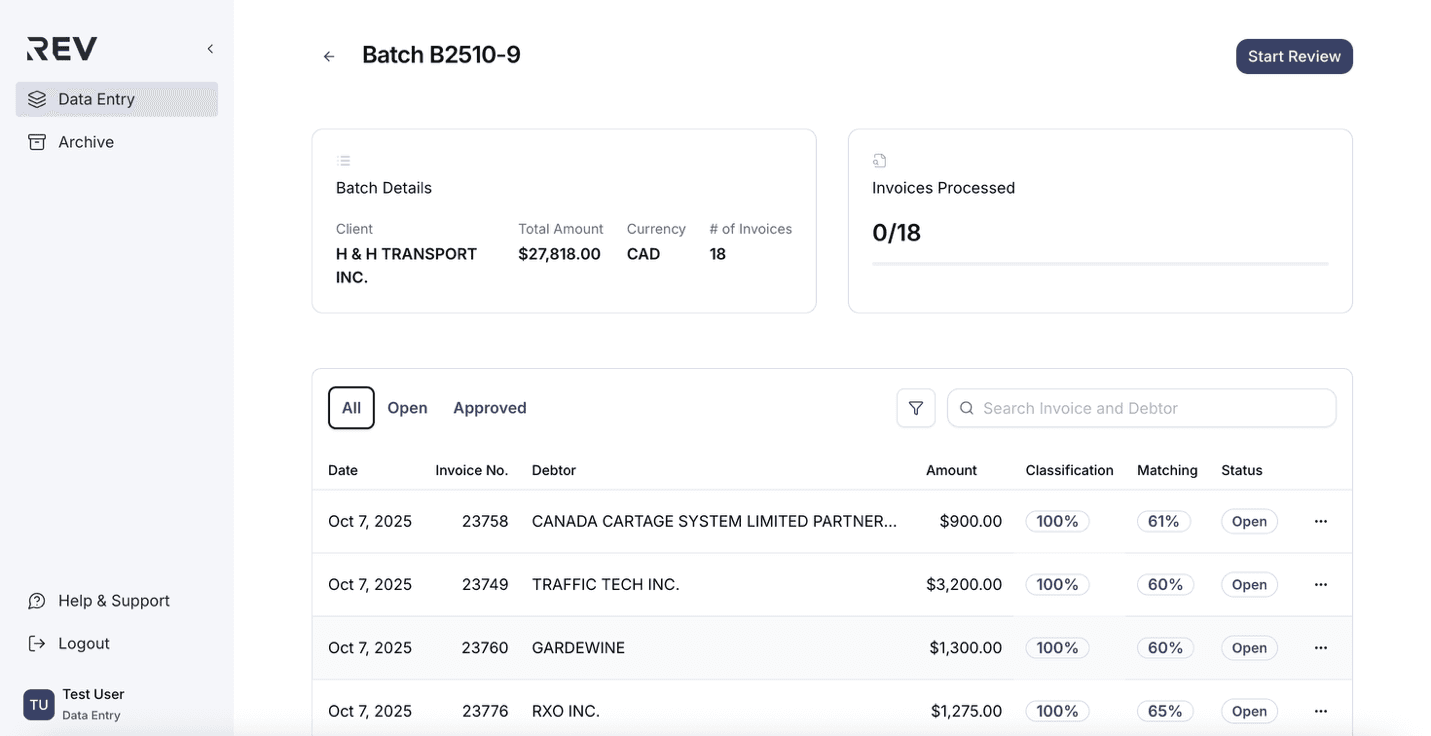
- You can directly edit fields (such as Amount, Client Name, Debtor Name, etc.) within the invoice view — no edit button is needed.
- After making changes, you must click Approve again to re-approve the invoice.
Move invoices to another batch
You can move an invoice in two ways:
- From the ellipsis (⋯) menu next to an invoice in the batch list.
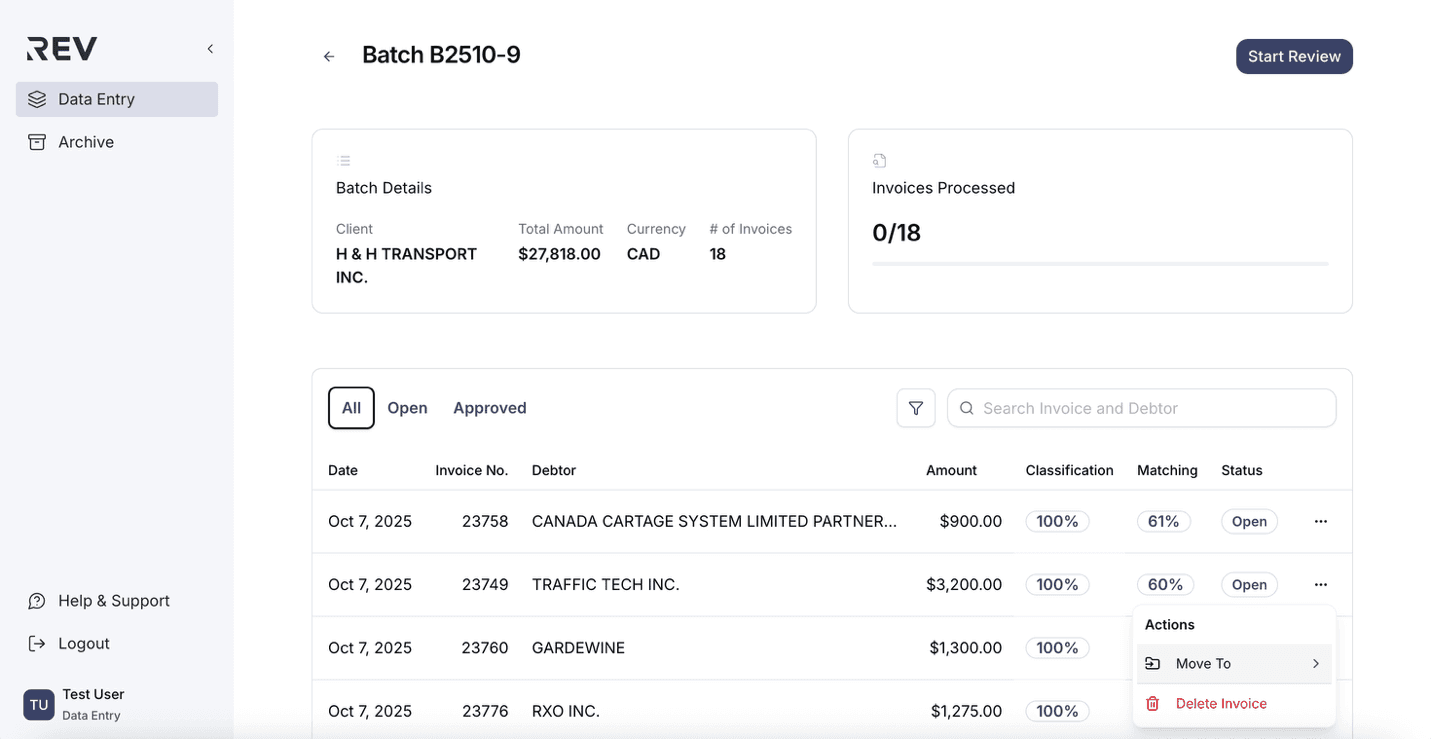
- Or, directly from the invoice review screen by clicking the "Move" button in the top right corner.
Delete invoices
- In the batch overview, click the ellipsis (⋯) next to the invoice you want to delete.
- Select Delete Invoice
- Confirm the deletion in the pop-up window
- A banner will confirm success. Deleted invoices are archived for 14 days before permanent removal.

Submit the batch
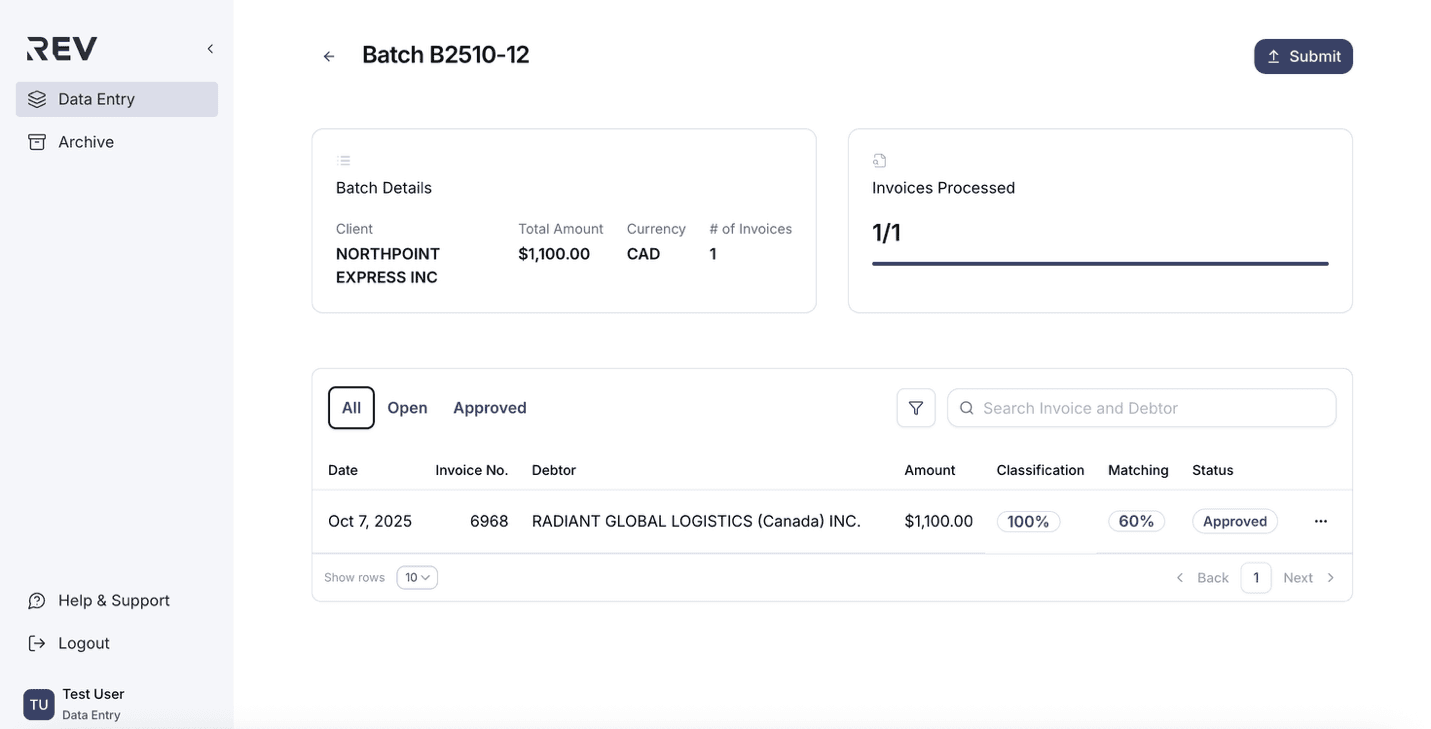
- Once all invoices are approved, the system will return you to the batch overview. The Start Review button will now change to Submit.
- Click Submit. In the confirmation pop-up, click Submit again to finalize.
- After submission, the batch will be moved to the Archive under the Batches tab for future reference.
How to review invoices?
Check and approve invoice details before submitting a batch.
Switch between documents
- Open an invoice.
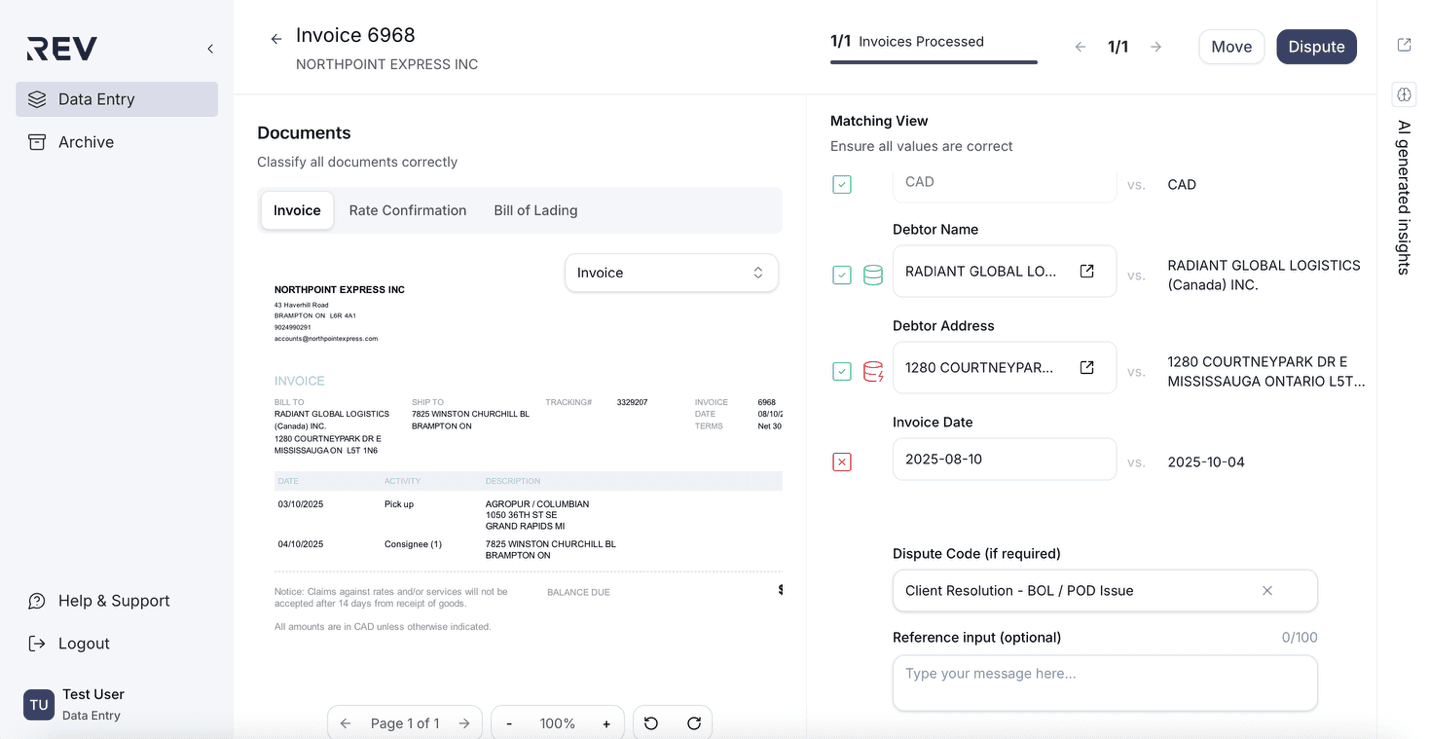
- Use the horizontal banner on the left to switch between different documents (Invoice, Rate Confirmation, Bill of Lading, etc.).
- You can also reclassify a document using the dropdown above the preview.
Check matching view
- On the right, review the extracted information (Amount, Currency, Client Name, Debtor Name, etc.):
- Green = Match
- Red = Mismatch
- Fields can be edited manually if incorrect.
Database match check
A database icon next to Debtor Name and Debtor Address indicates a match with internal records:
- Green = Found in database
- Red = Not found
Dispute code
- If you notice discrepancies (e.g., amount, date, missing documents), click the dropdown and choose the reason.
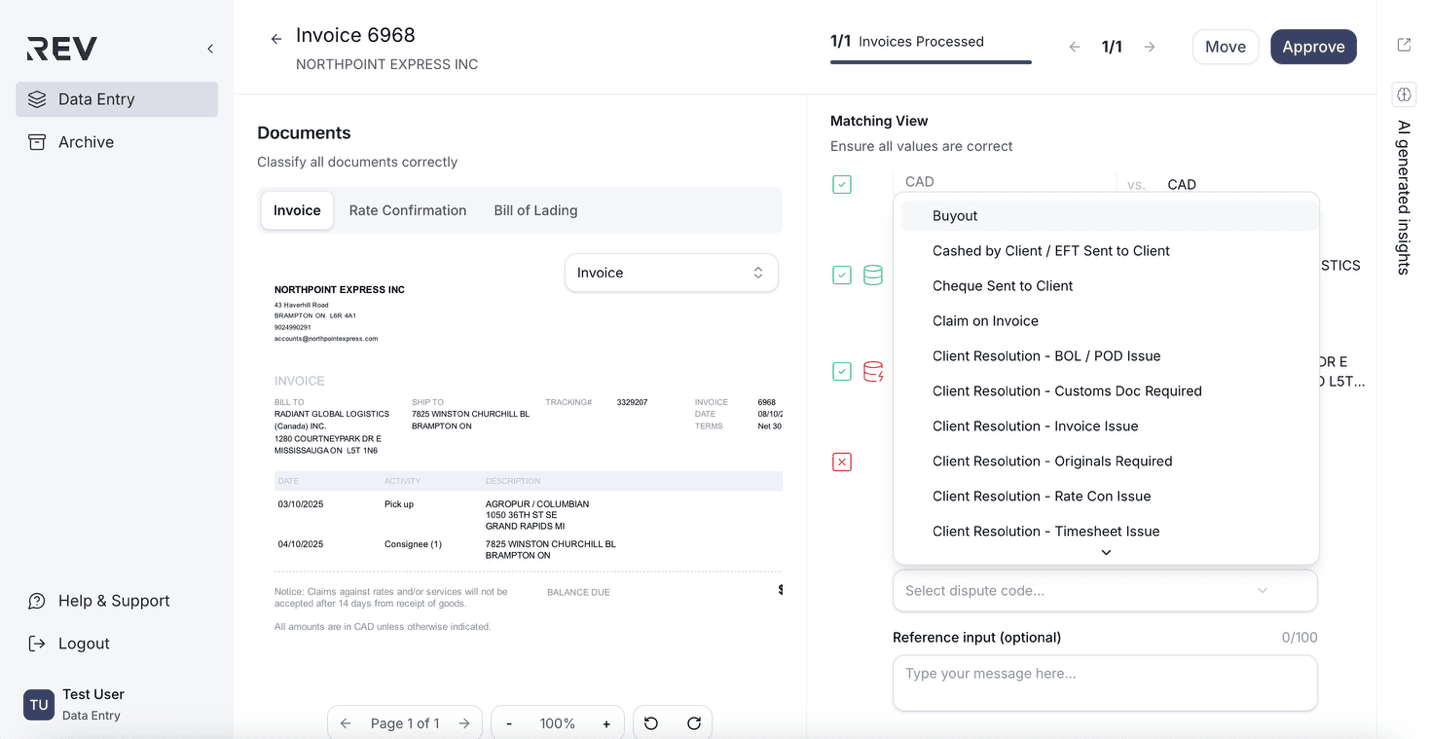
- Once a code is selected, the Approve button will be replaced with Dispute.
- Click Dispute to hold the invoice.
- You can remove a dispute code by clicking the X next to it.
Note: If you select Duplicate Invoice as the dispute reason, all editable fields (e.g., Client Name, Debtor Name, Currency, Amount, etc.) will become locked and cannot be modified.
Approve or save
- Click Approve to proceed (if a Dispute Code is flagged, the button will change to Dispute).
- Your progress will be saved when you click Approve/Dispute.
How to use the AI-generated summary?
Let AI help you identify risks and discrepancies in invoices.
- Go to the invoice review screen.
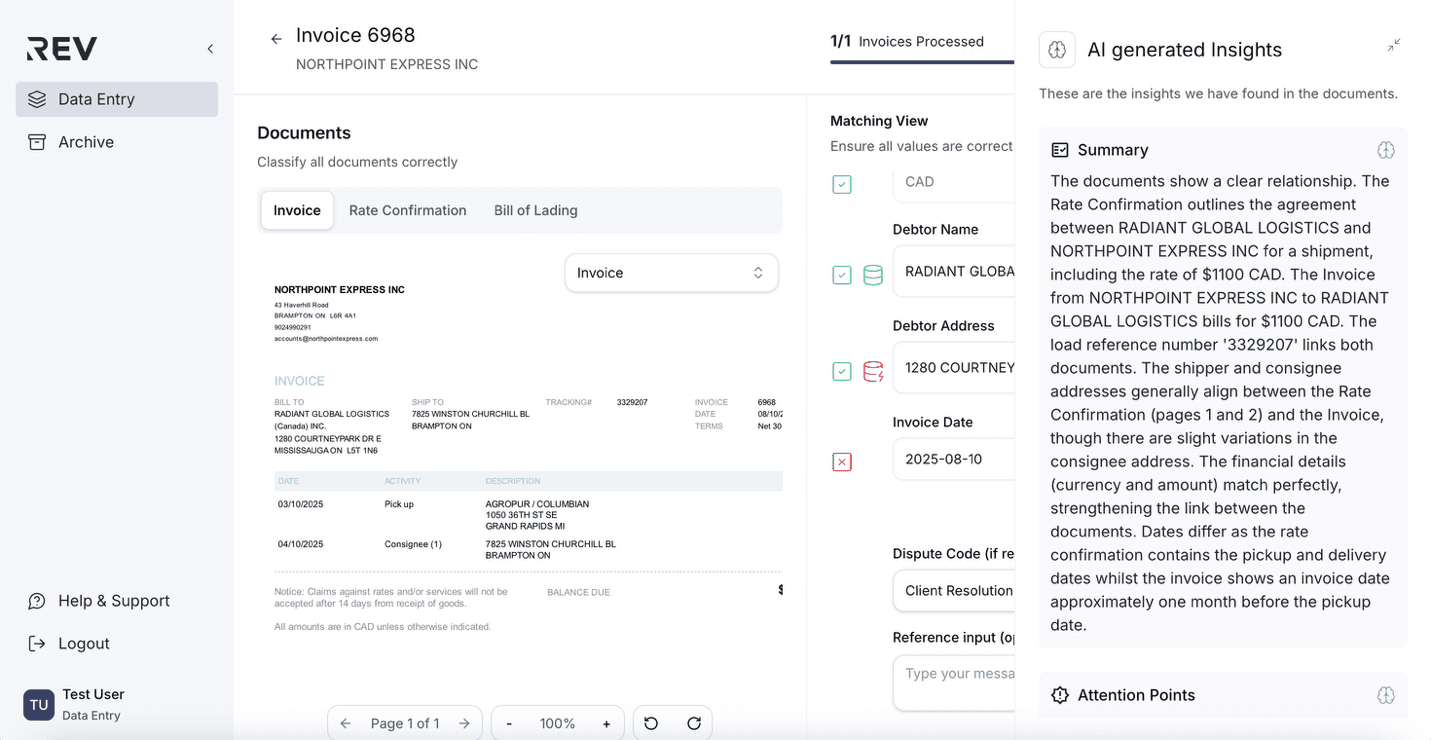
- Click the right-hand side to open the AI Generated Insights panel.
- The panel will display:
- Summary: A high-level overview of the invoice and related documents.
- Attention Points: Highlights issues such as amount mismatches, missing data, or inconsistencies
- Match Quality: Explains how well the system believes the documents align.
- To close the panel, click the collapse icon in the top-right corner of the insights panel.
How to delete an intake file?
Easily remove unneeded intake files from your workspace.
- Go to the Files tab under Data Entry.
- Locate the intake file you wish to delete and click the ellipsis (…) on the right.
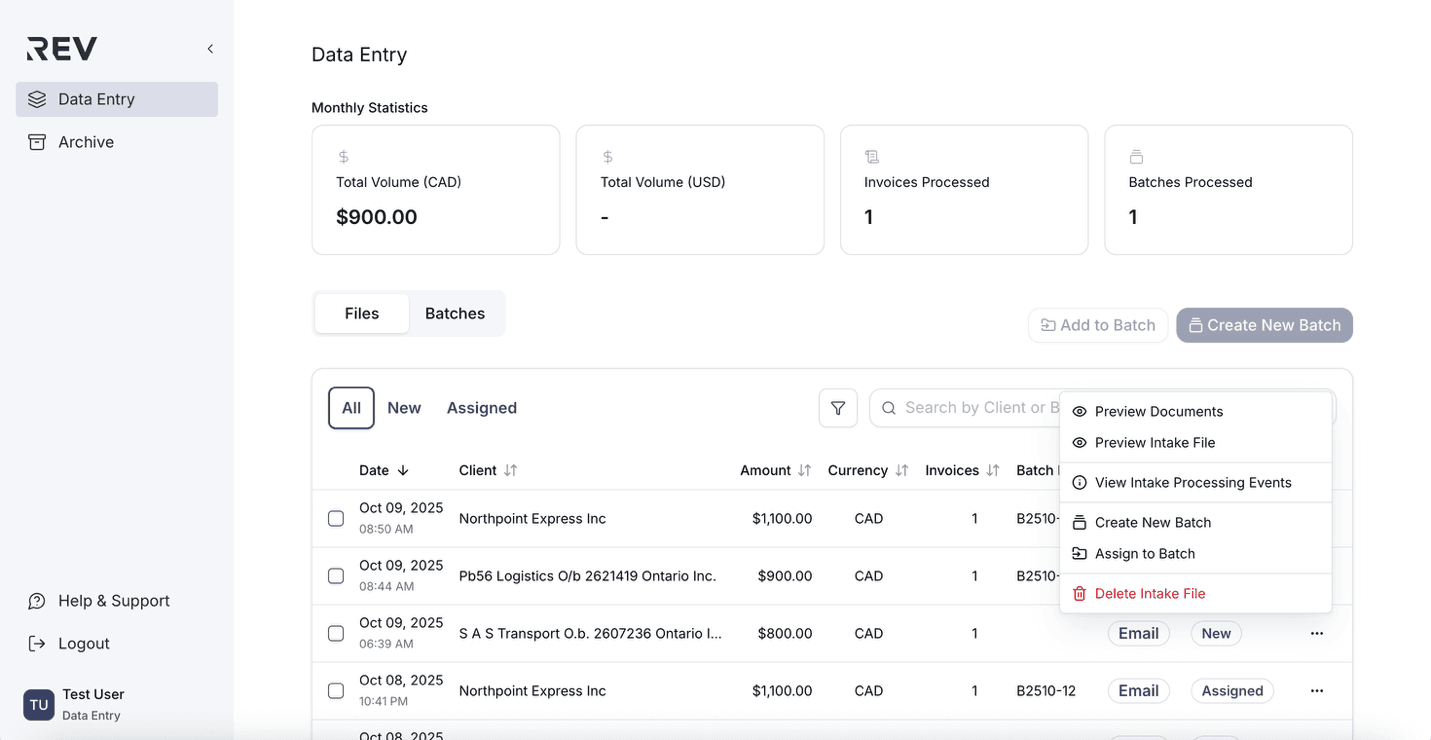
- Select Delete Intake File from the dropdown menu.
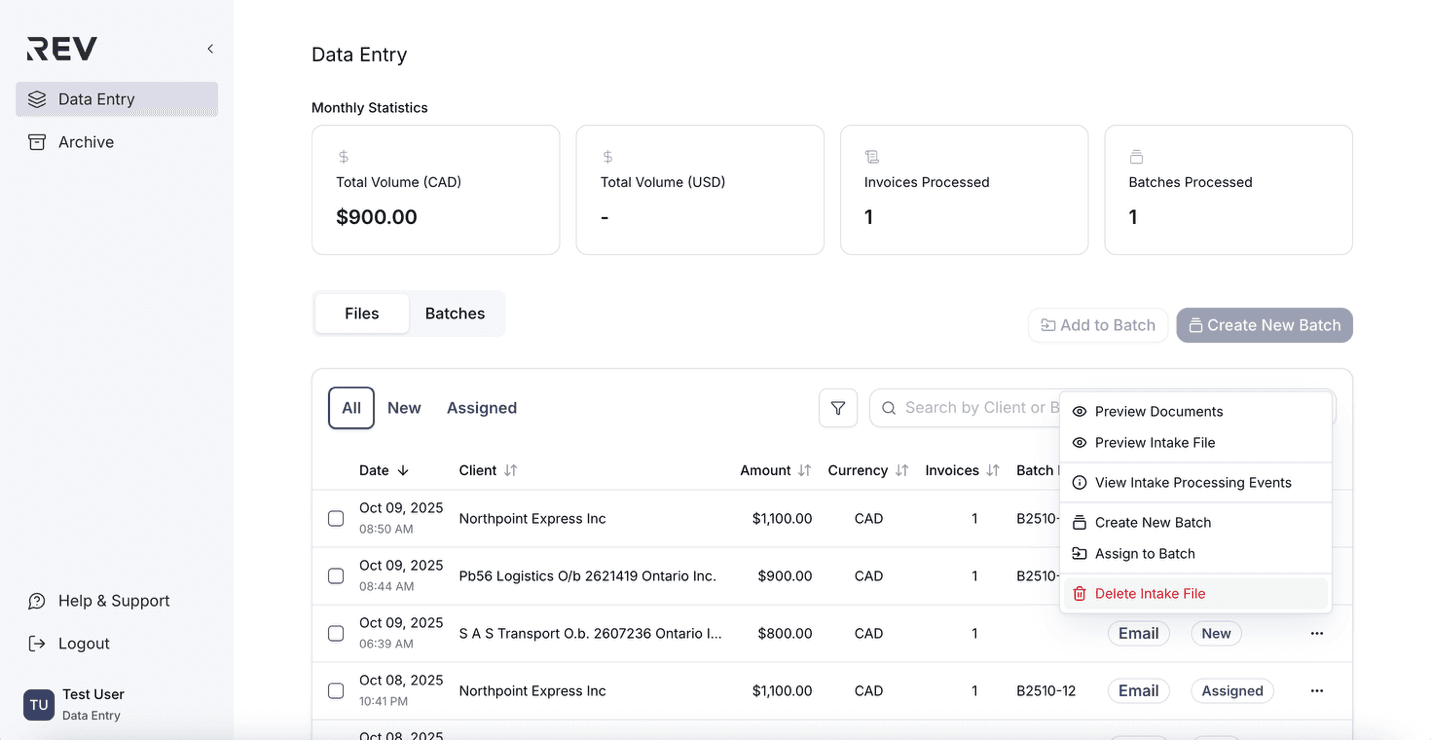
- In the confirmation popup, click Delete Intake File again to confirm.
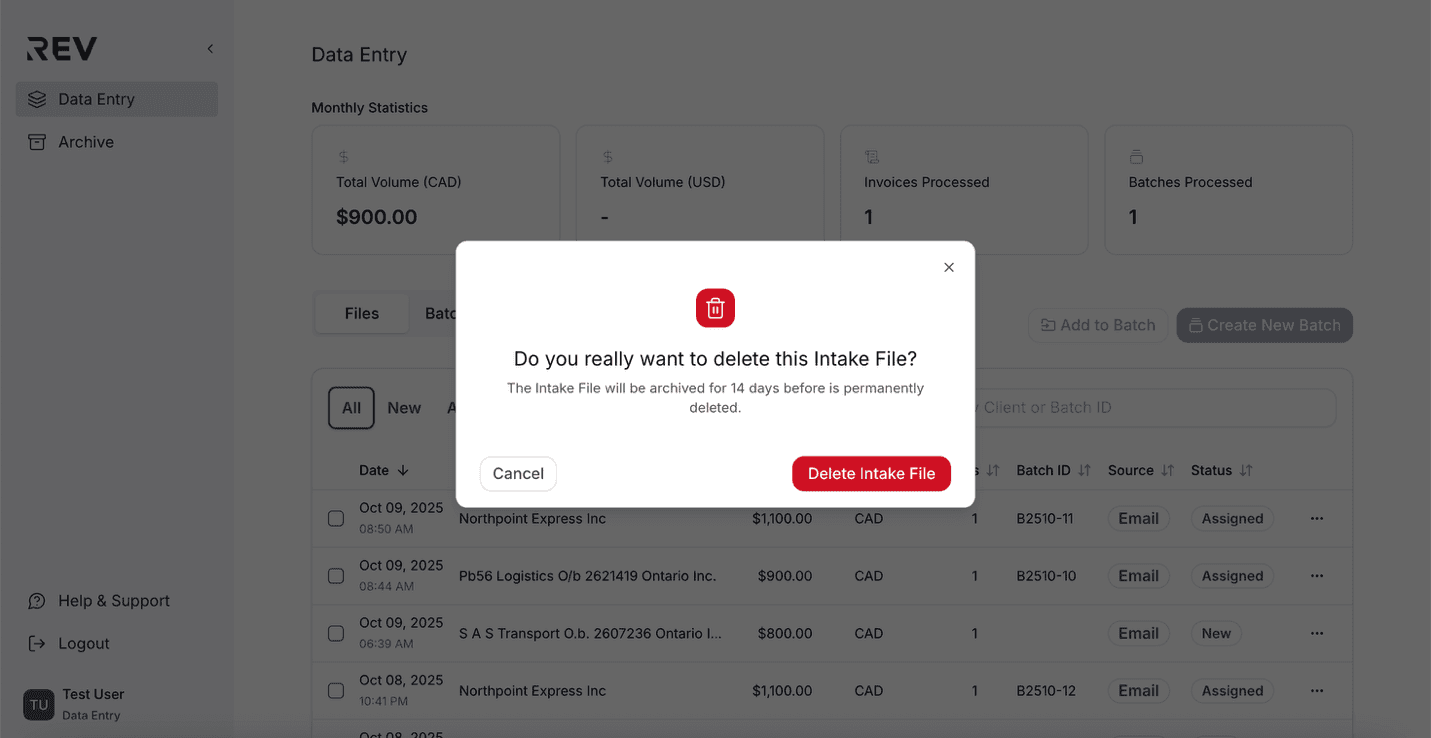
- A confirmation banner will appear to indicate success. The file will remain in the Archive for 14 days before permanent deletion.
How to delete a batch?
Permanently remove a batch and release its files for reassignment.
- Go to the Batches tab under Data Entry.
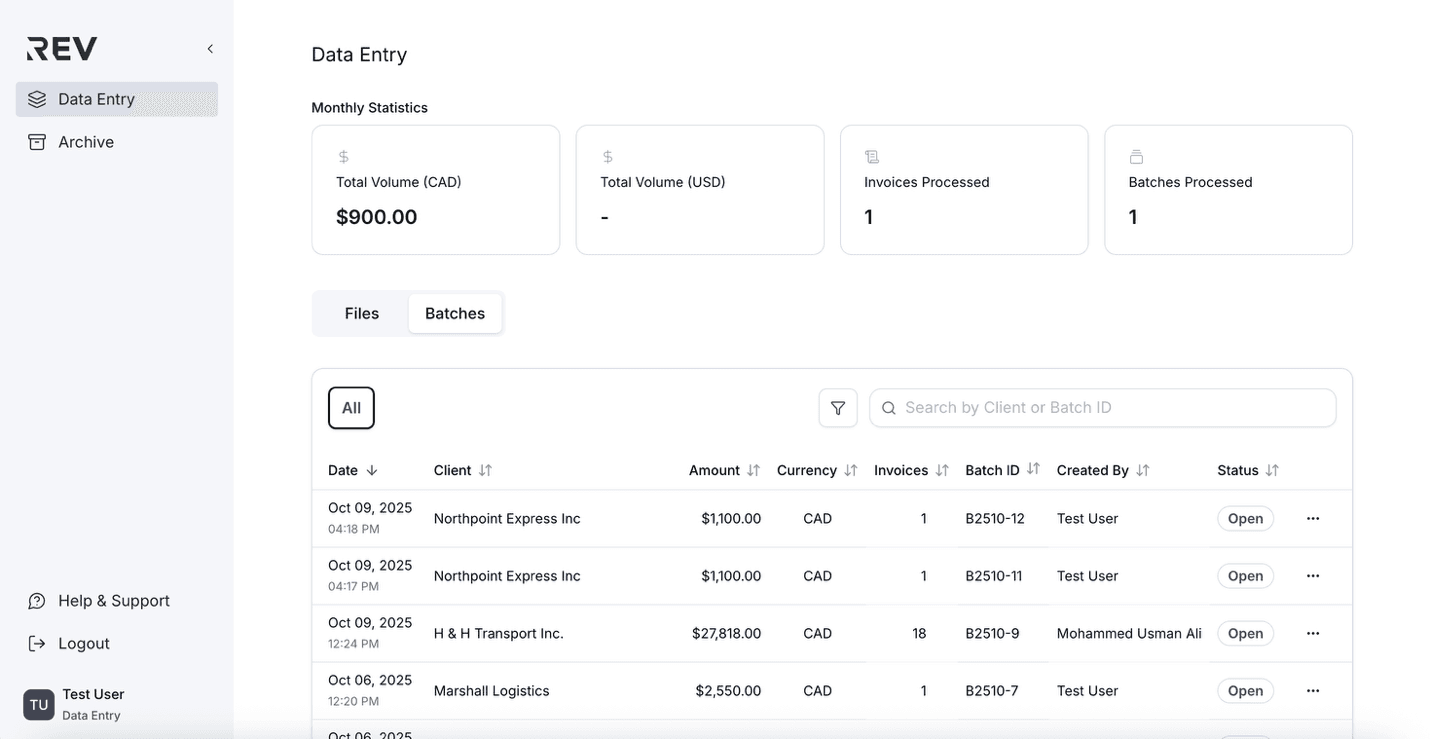
- Click the ellipsis (⋯) on the right side of the batch you want to delete.
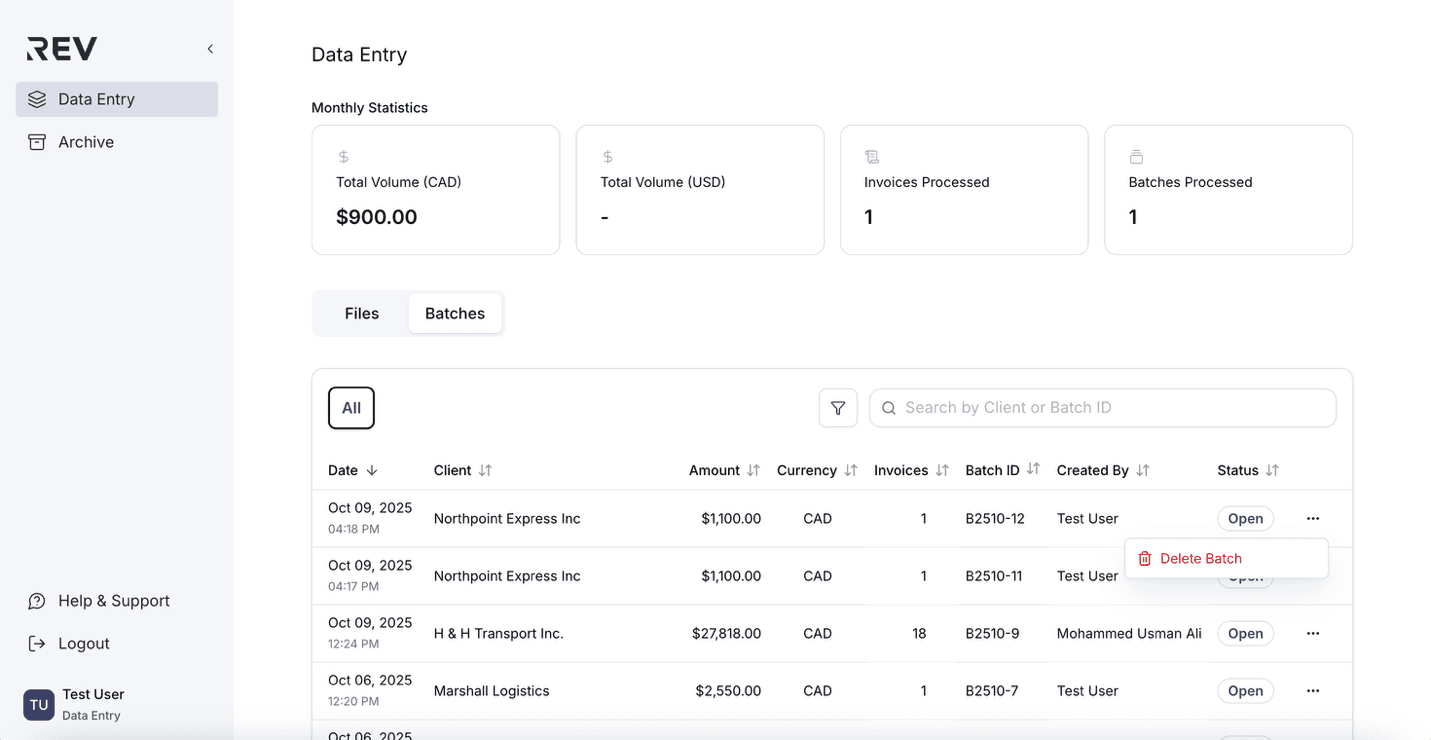
- Select Delete Batch from the dropdown menu.
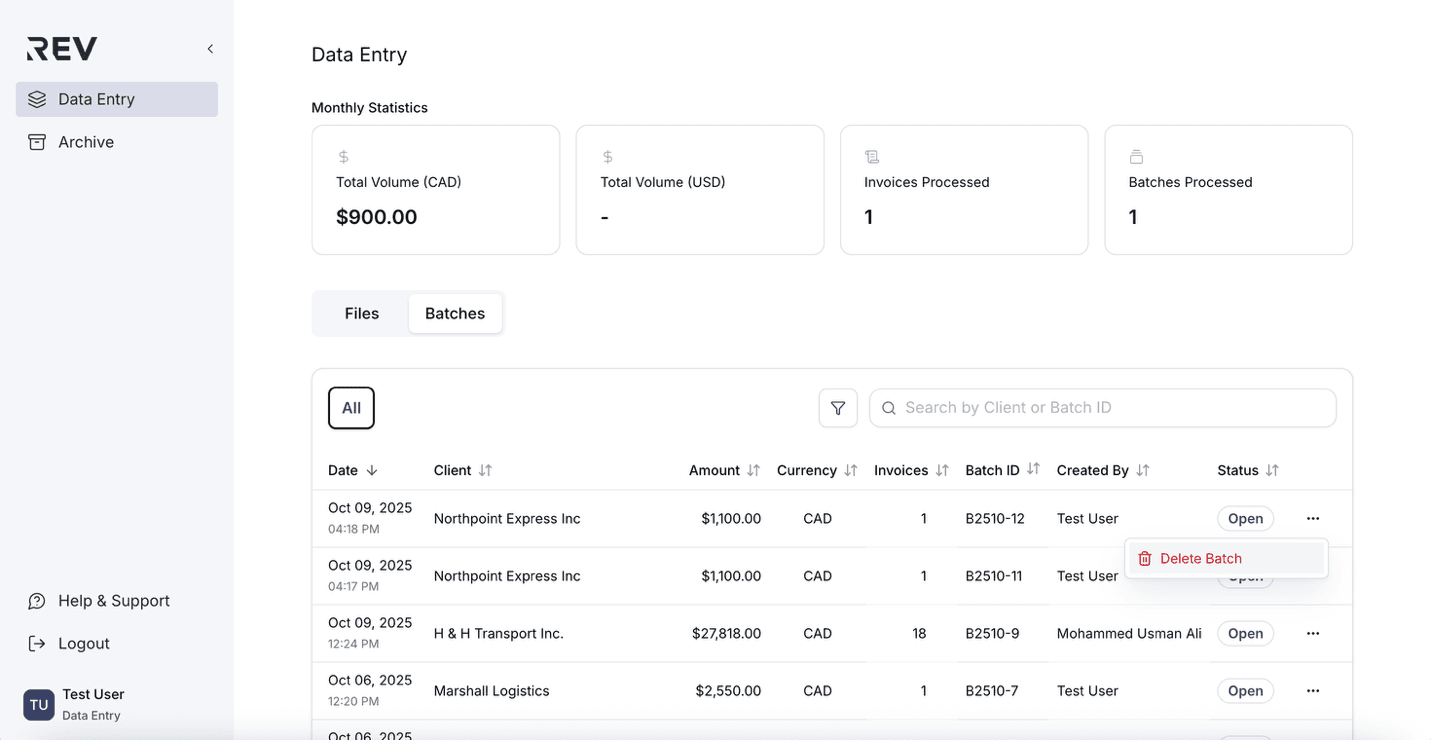
- In the confirmation popup, click Delete Batch again to confirm.
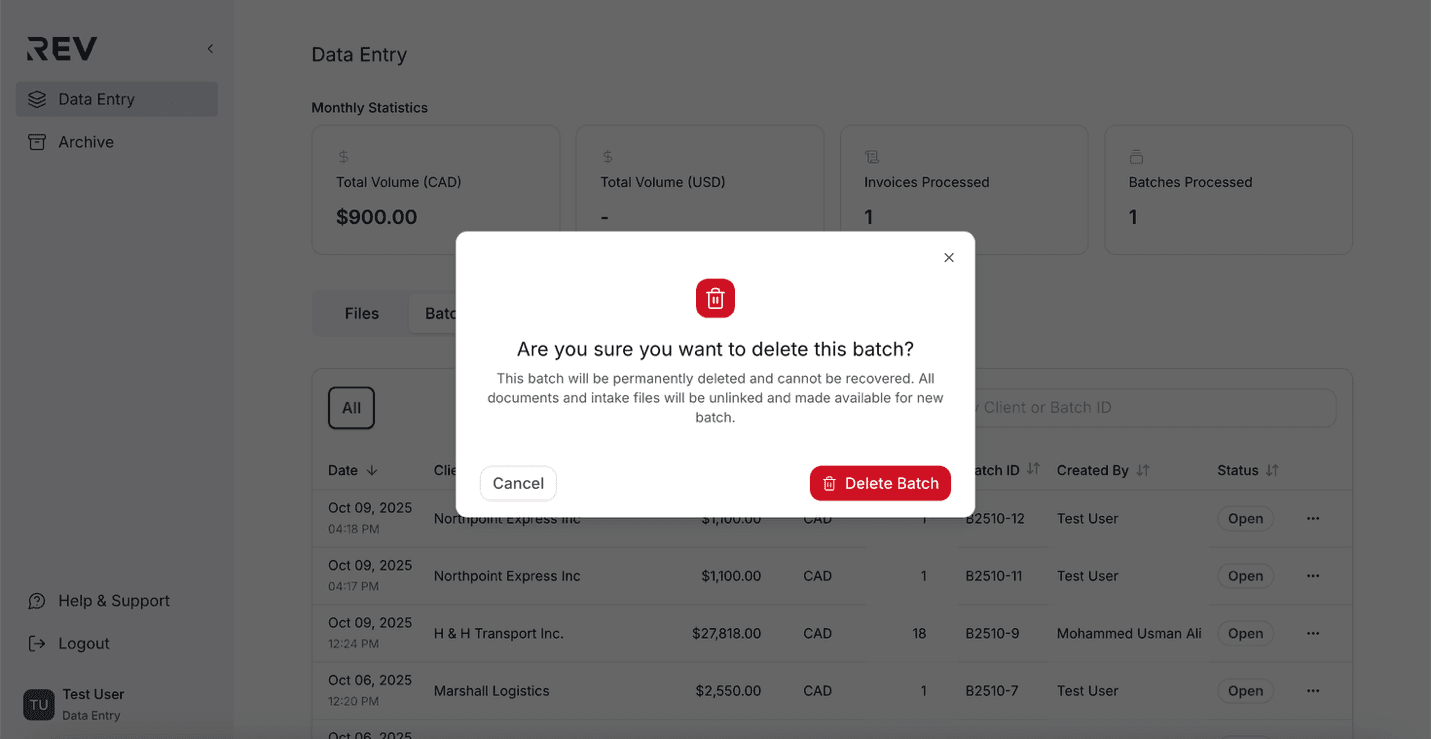
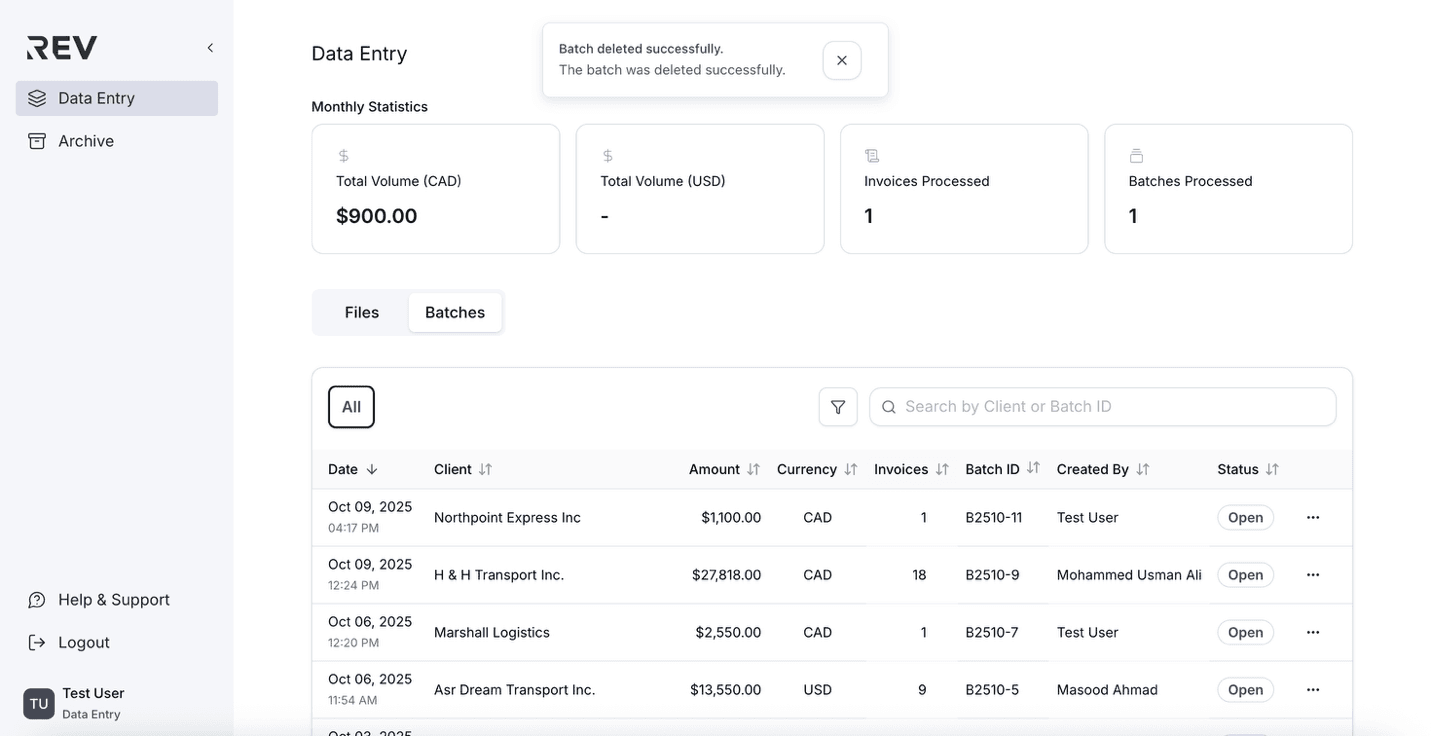
- A banner will appear to indicate success.
How to preview and recover archived intake files?
Easily check and restore deleted intake files within 14 days.
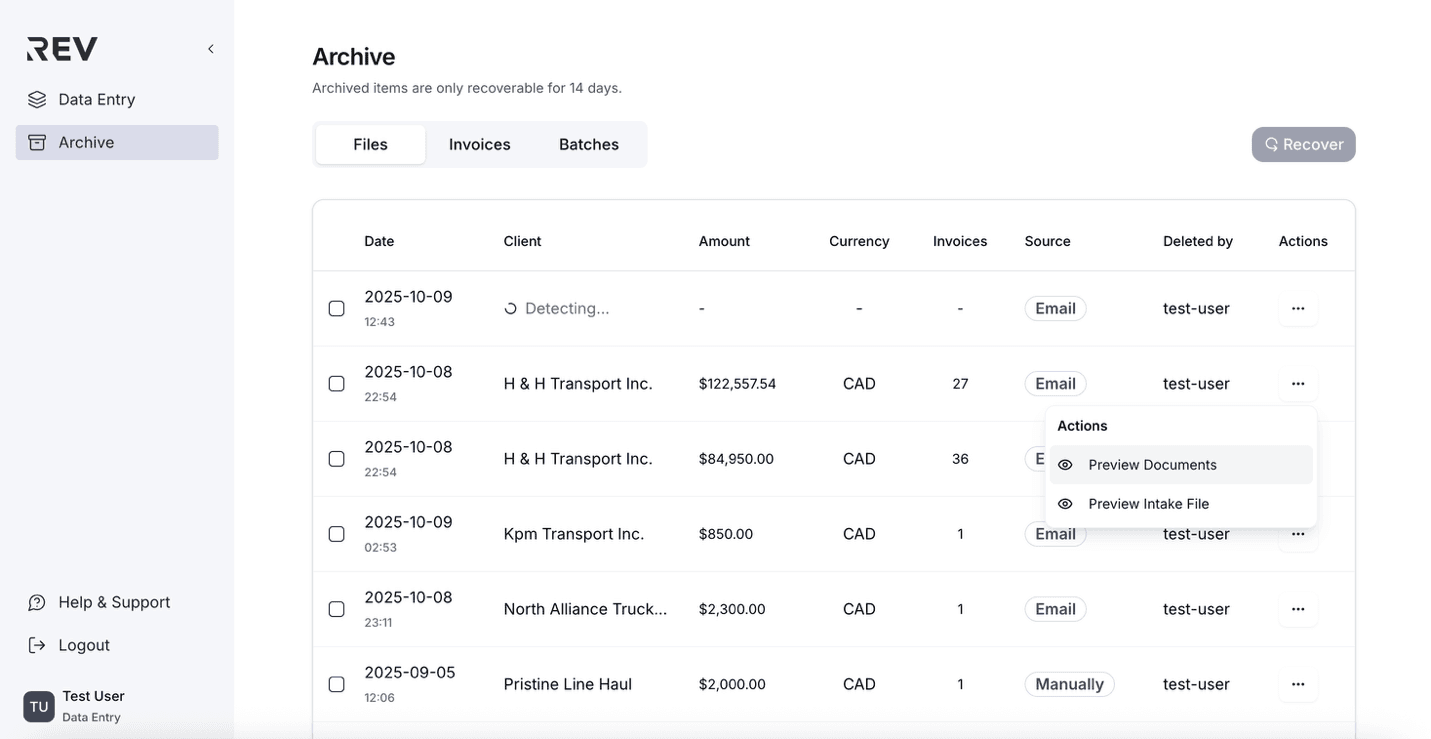
Preview intake documents
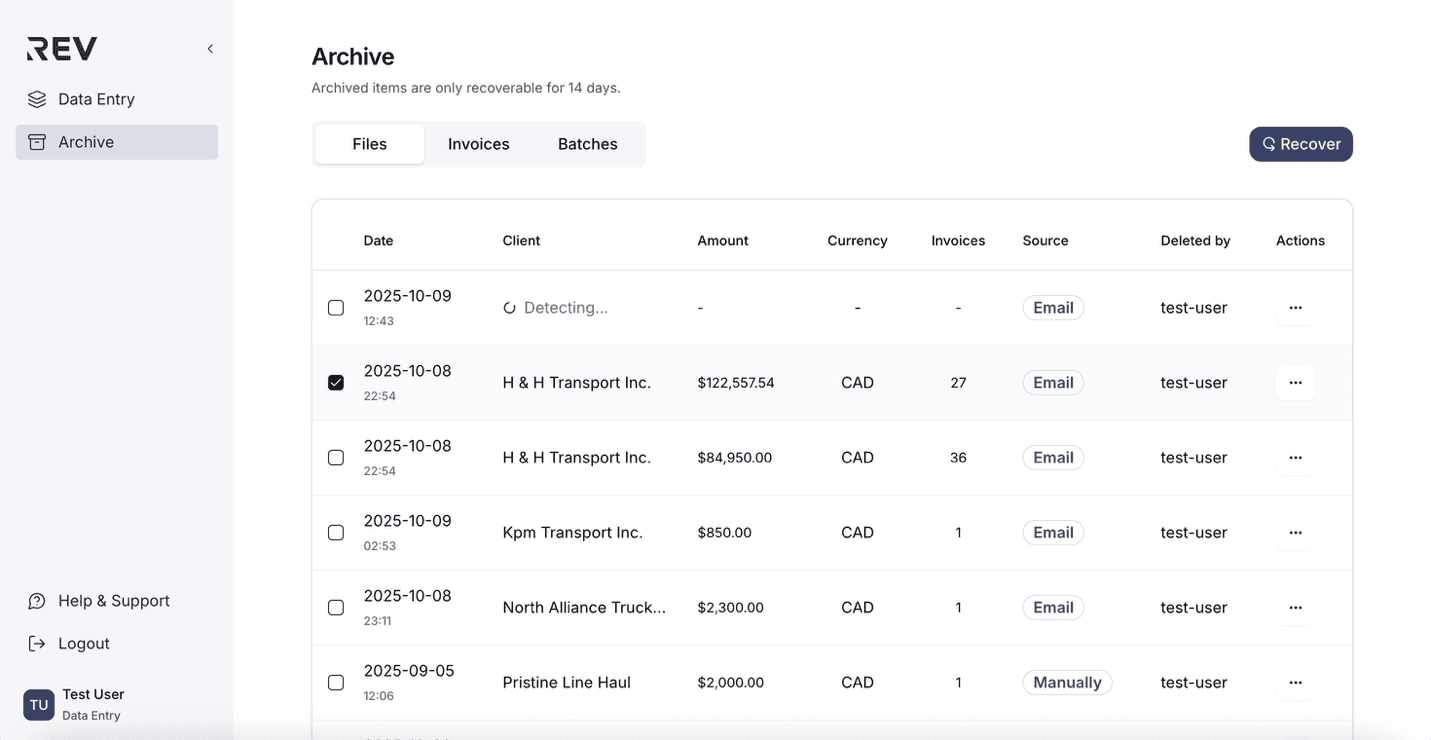
- Go to the Archive section from the left sidebar.
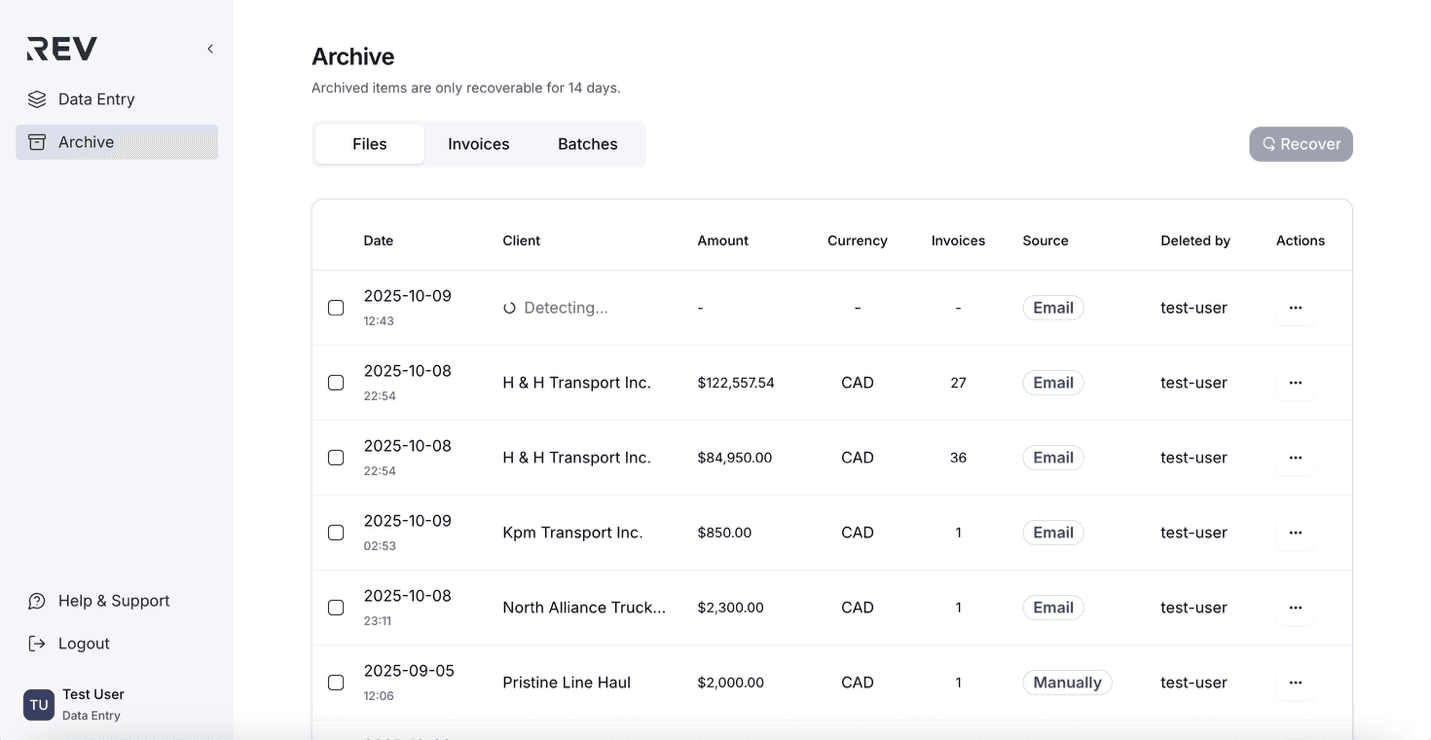
- Make sure the File tab is selected.
- Click the ellipsis (⋯) on the right side of the file you want to preview.
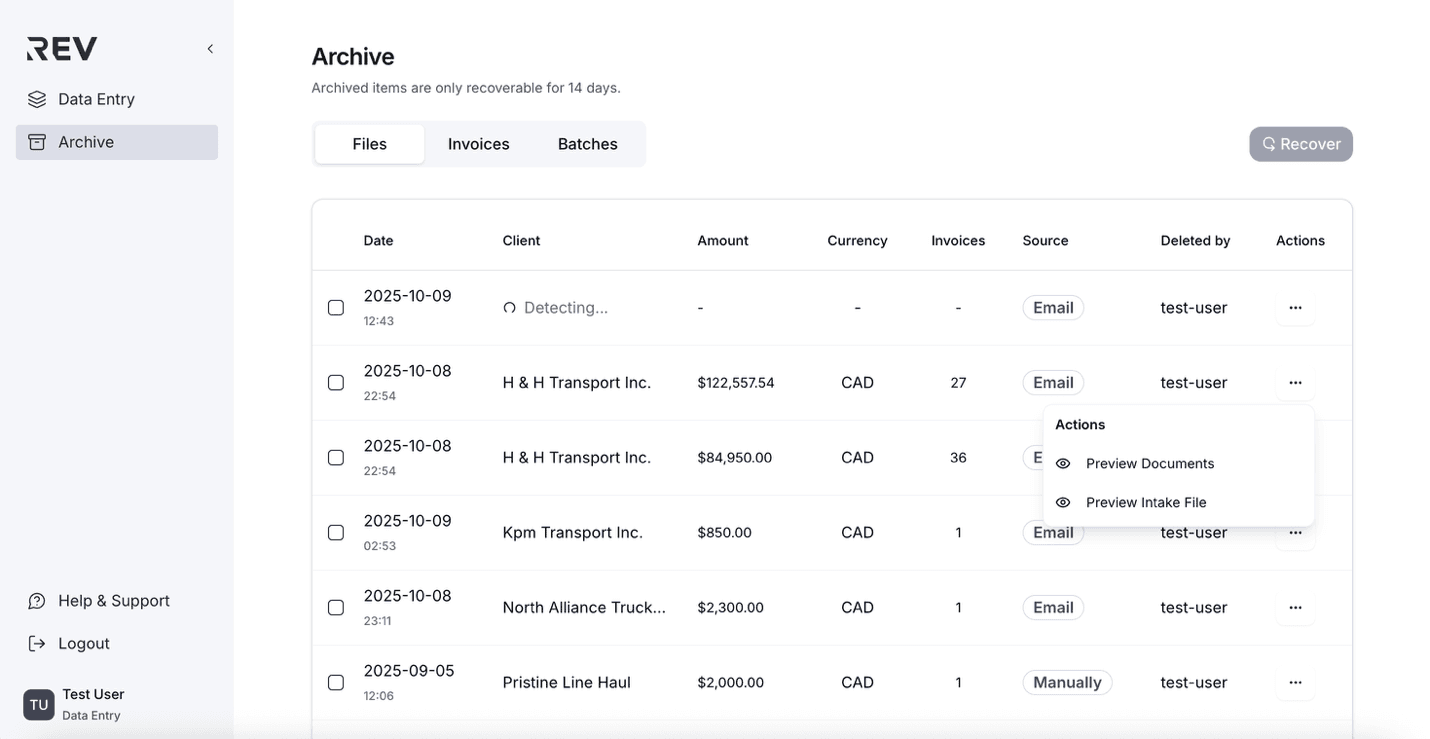
- Select Preview Documents.
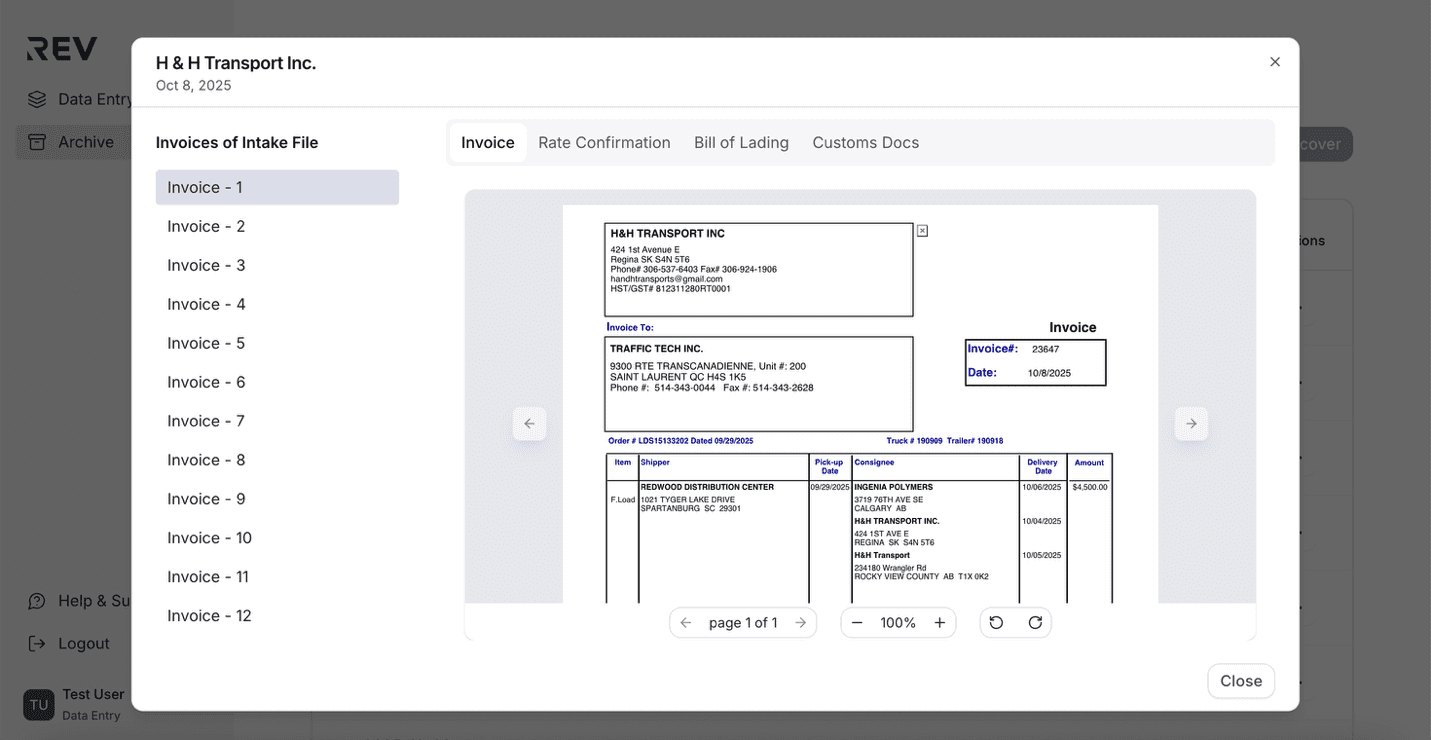
- In the preview window:
- Use the tabs on top to switch between document types (e.g., Invoice, BOL).
- Use the left-side panel to navigate between invoices.
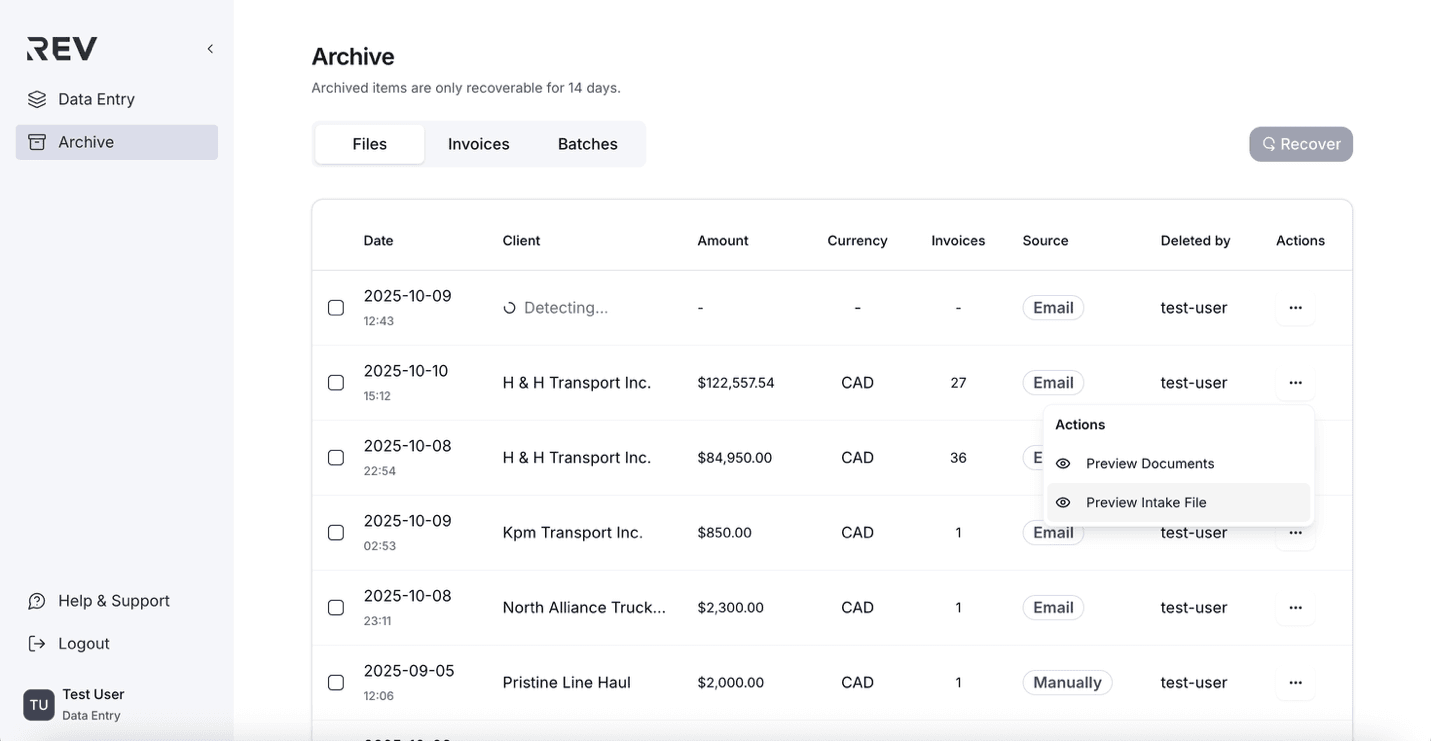
Preview original intake file
- Click the ellipsis (⋯) on the right side of the intake file.
- Select Preview Intake File from the dropdown.
- A viewer will open showing the original file as submitted by the client.
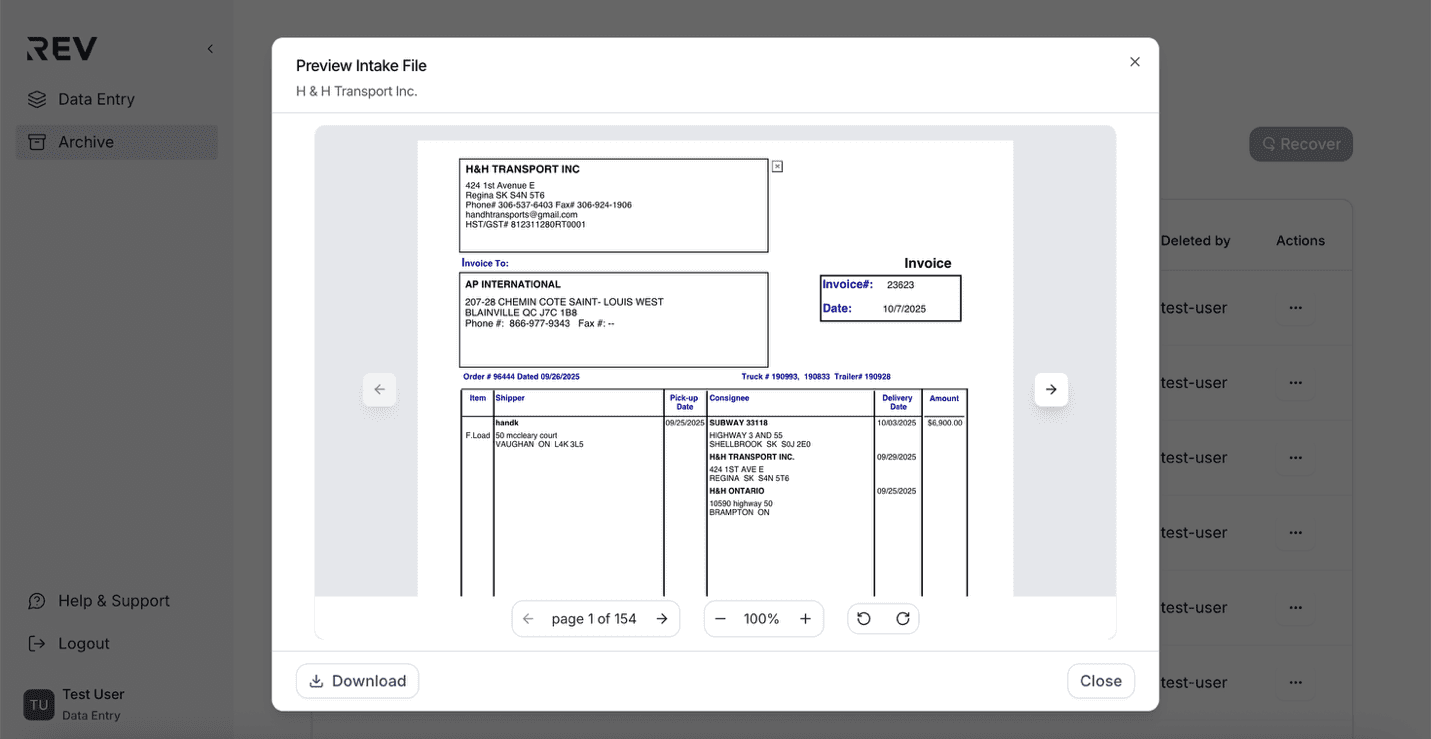
- You can also download the file directly from this preview window if needed.
Recover intake files
- In the Archive section under the File tab, check the box next to the file you want to restore.
- Click the Recover button in the top right.
- A banner will confirm the file was successfully restored.
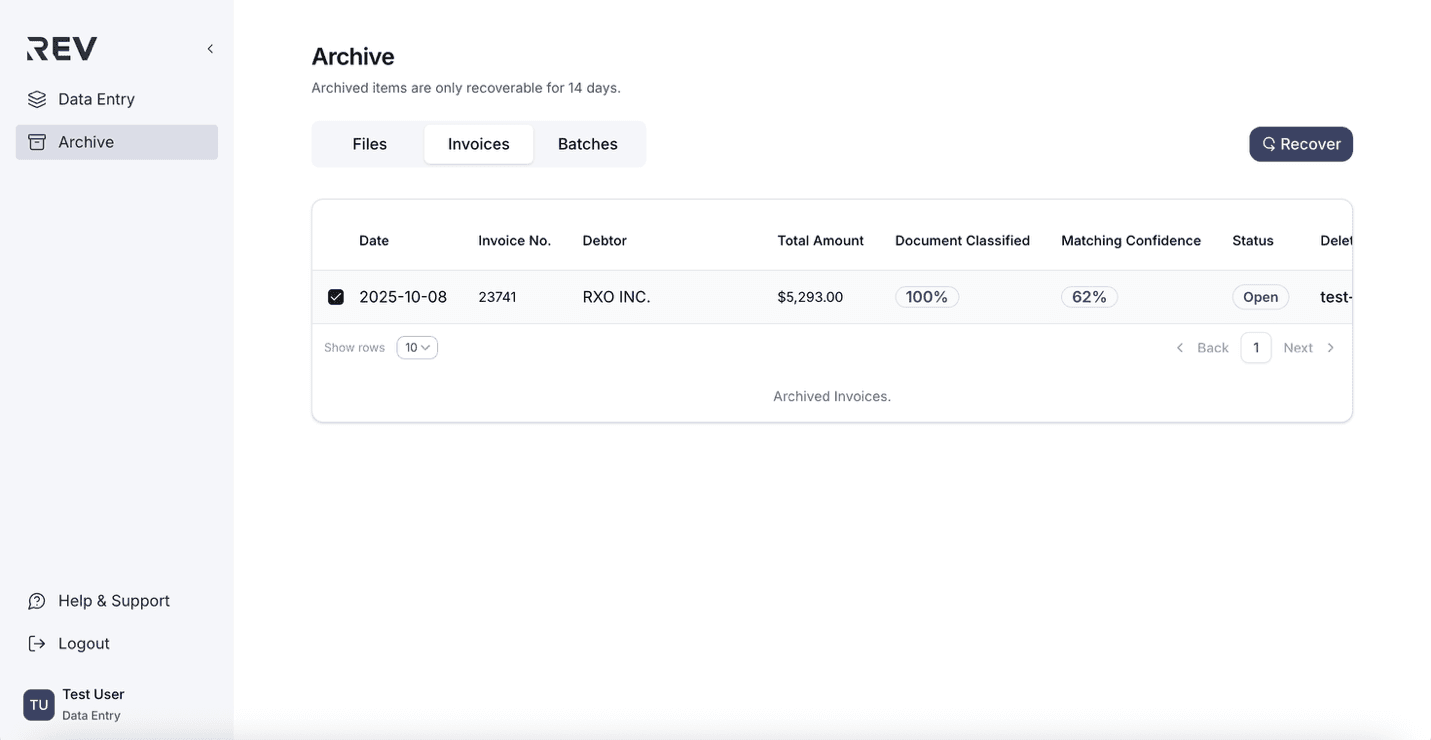
How to recover archived invoices?
Easily restore deleted invoices within 14 days.
- In the Invoices tab under Archive, check the box next to the invoice you want to restore.
- Click the Recover button in the top right.
- A banner will confirm the invoice was successfully restored.
How to access closed batches?
Review closed batches in the Archive.
- Go to the Archive section from the left sidebar.
- Select the Batches tab at the top.
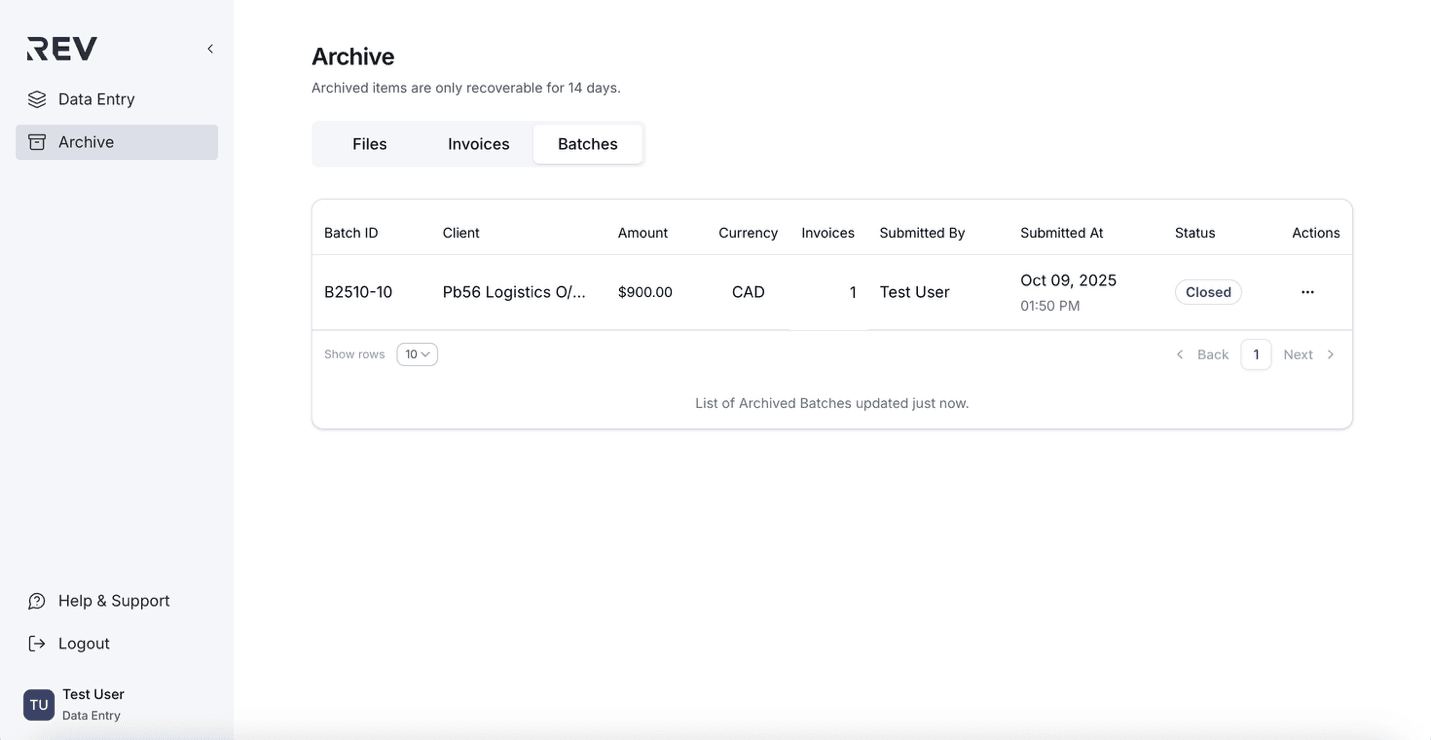
- You'll see a list of all closed batches.
- Click on any batch to view its details.